

Please view below to see how to play the game. There is also a Units & Gameplay tab on the game which gives more instructions.
Version 2.01
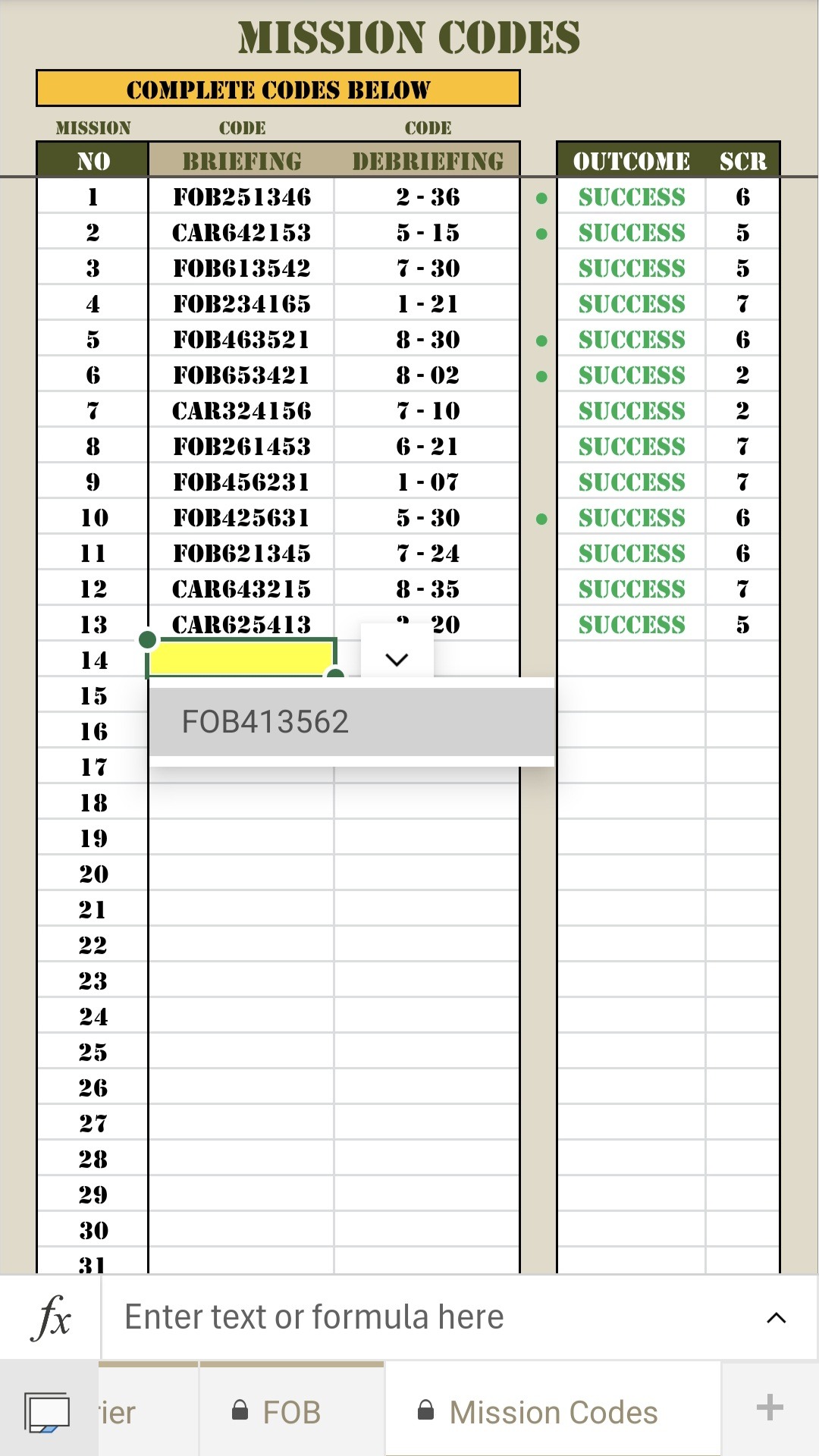
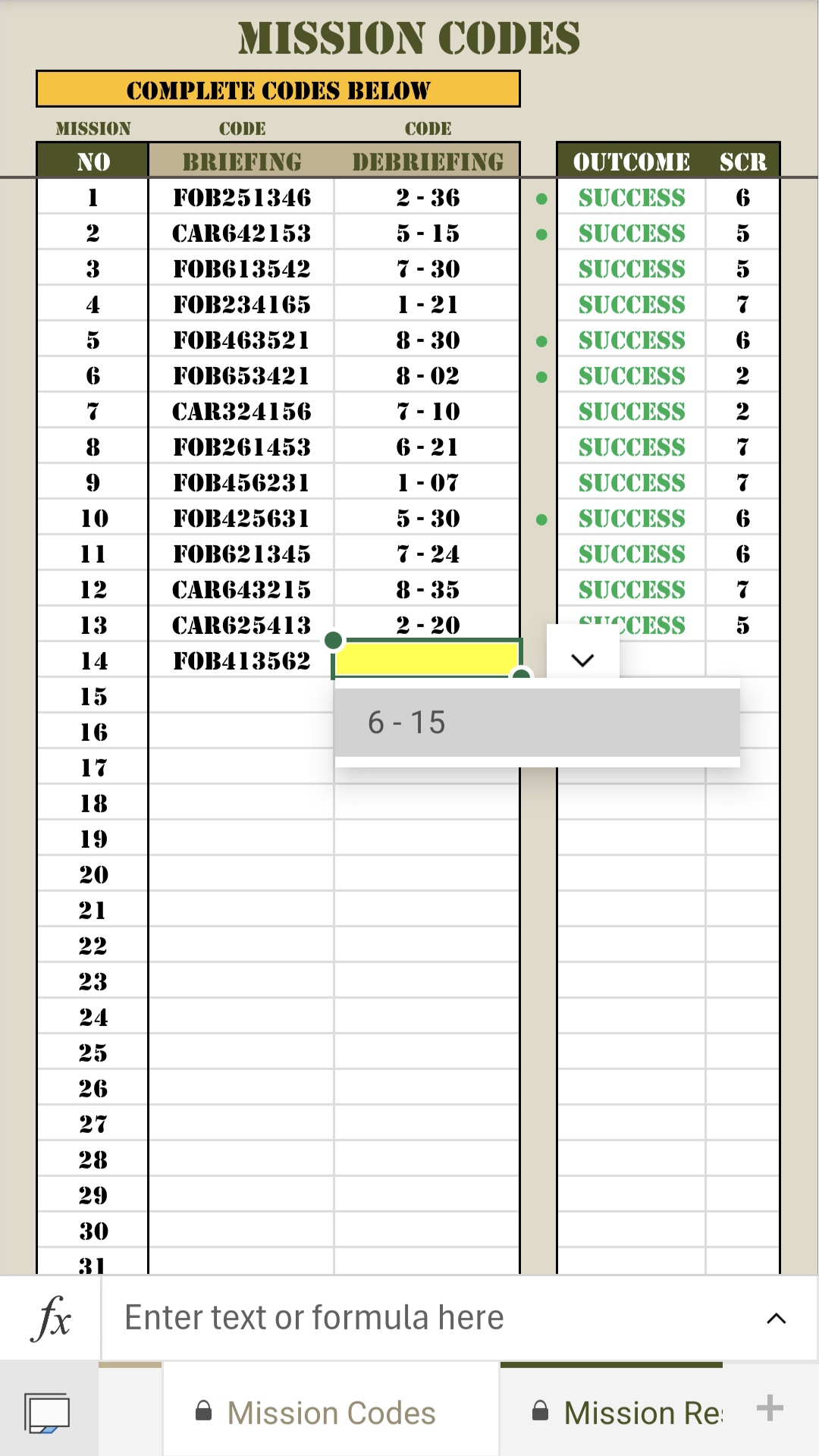
The game works on mission codes. Each time you wish to run a mission, complete the following process:
- Select the next briefing code from the drop-down list (Mission Codes tab as shown). This will give you a random briefing code for the next mission, and selecting it (the yellow cell) will set the mission up.
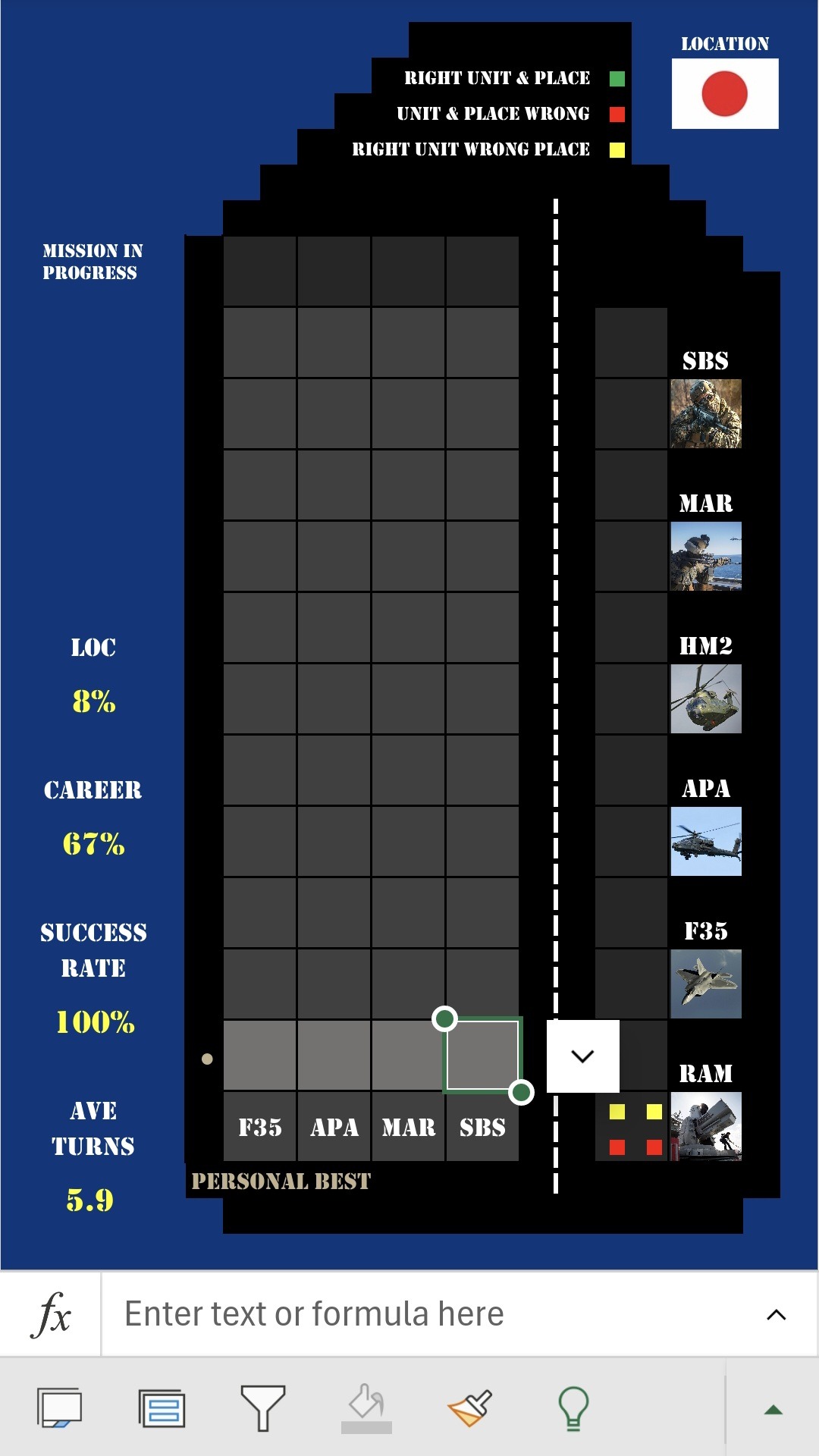
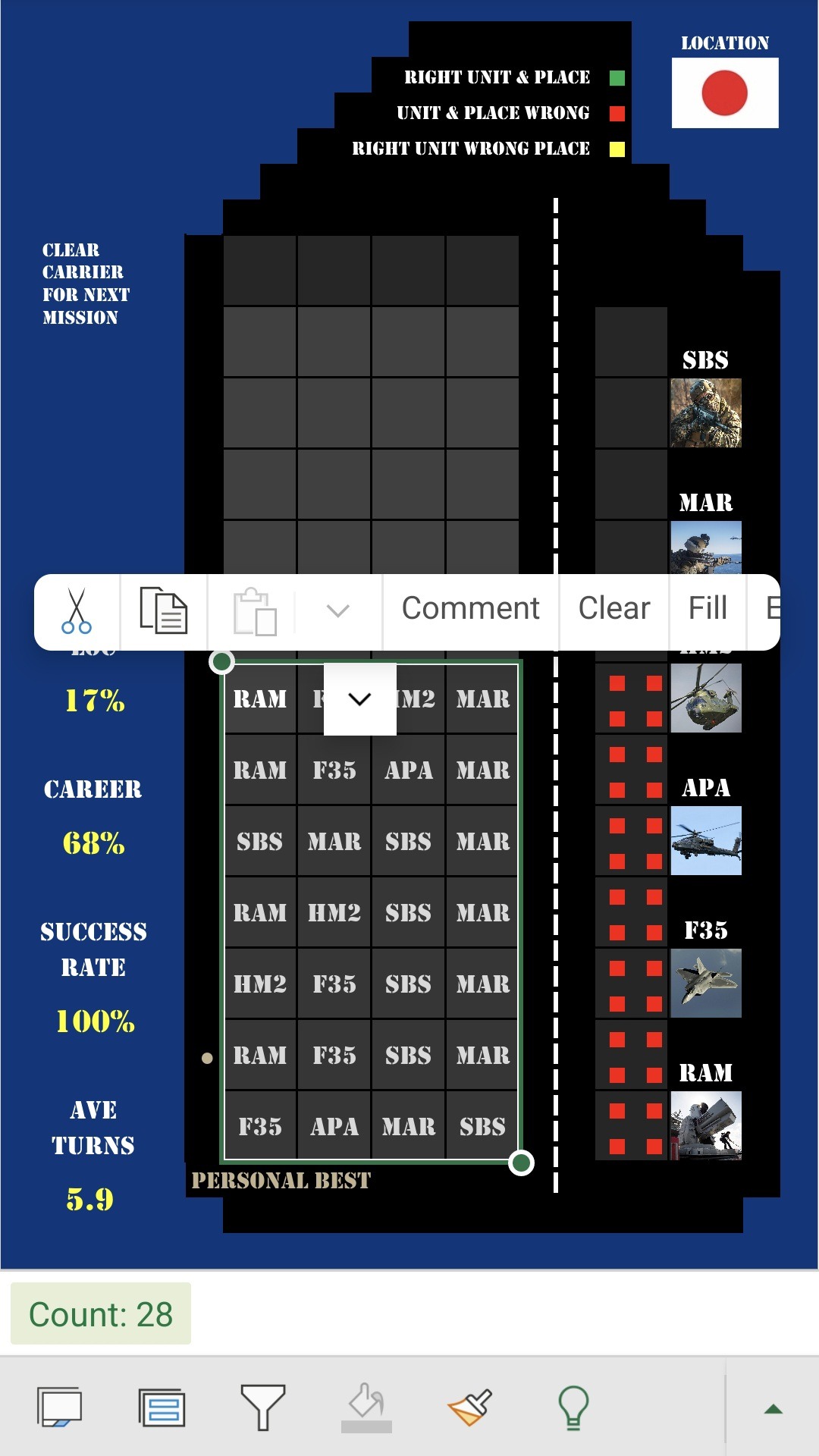
- Then proceed to the Carrier tab or Forward Operating Base (FOB) tab to execute the mission (as shown below) depending on the prefix of the mission code.
- Once the mission is complete (success or failure) return to the Mission Codes tab and select the debriefing code. This will then provide the outcome of the mission to mission control.
- Then return to the Carrier/FOB tab to clear the entered data, which will then give you a new briefing code for the next mission.
You can keep running missions following the above process, unless you are travelling to a new location, in which case this will be unavailable, but training will be available. If you’re not sure what the next step is at any stage, consult the Bridge, and you will see an alert showing you what is required.
Carrier
This is the aircraft carrier, for all ‘CAR’ missions. You can run missions while at a location (not while travelling to a location) until your overall mission is complete (either by your victory, or if you run out of available missions).
You can run a mission by following this process:
- Select a briefing code (see above) on the Mission Codes tab.
- Select 4 units from the drop-down lists in the lighter grey cells (start from the bottom, and work your way up one row at a time). I suggest selecting from right to left, so that the drop-down arrows don’t block the next cell. Keep guessing unit options until you either crack the code, or run out of rows.
- Once done, select the debriefing code (see above) on the Mission Codes tab.
- Then return to the Carrier tab, select all the units you selected (only editable cells as shown) and clear them all. That will then make the next briefing code available.
HINT: You don’t need to guess the unit options, you can work out what they are based on the red, yellow, and green square lights shown. Visit the Units & Gameplay tab to see what these coloured lights mean!


FOB
This is the forward operating base or FOB, where all ‘FOB’ missions get run from.
This works the same way as the carrier, except for these differences:
- The carrier has 12 rows, this only has 10. That means that missions run from here are slightly more difficult.
- This gets packed up while travelling, and gets set up again at the new location. The scenery (colours) may change from place to place.
- There are different units available here. Please consult the Units & Gameplay tab to see what units are available. These different units mean that there is a higher chance of gather intelligence from missions run from here.
Whether missions get run from the carrier or here, is determined by the mission briefing code. You can adjust what percentage of missions are FOB missions on the Settings tab.
Changing Locations & Unit Training
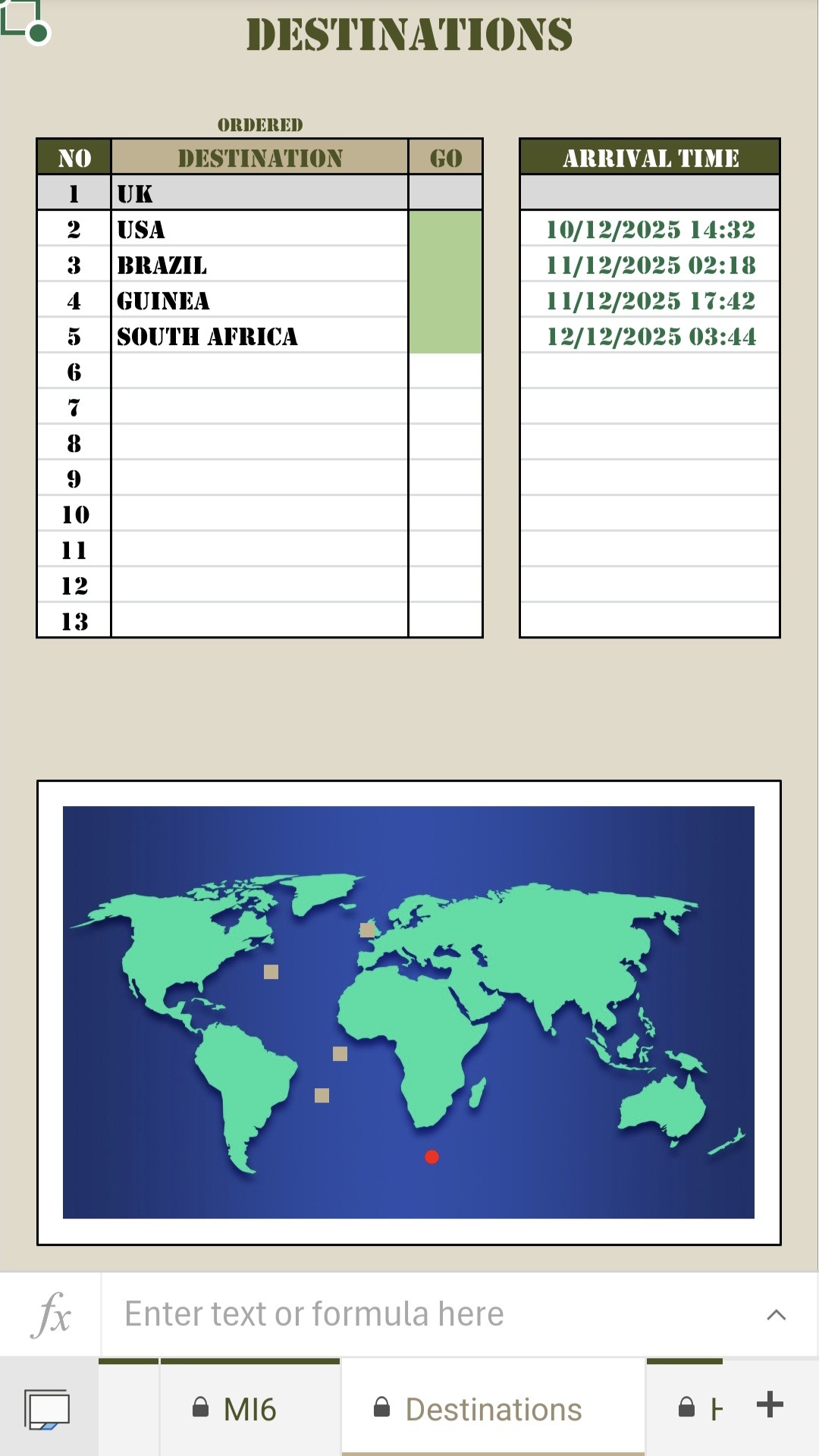
You complete each location by collecting enough intelligence. This is when the special forces or marines complete a successful mission. When you complete one location, you will be instructed (the Bridge and MI6) to set course for a new location. To do so, simply select the new location from the yellow cell, AND then select the yellow cell under the Go column on the Destinations tab. Only once both have been selected, will you be heading for the new location.
While travelling, you can’t run missions, but you can do training. You will arrive at your new location at the time shown.
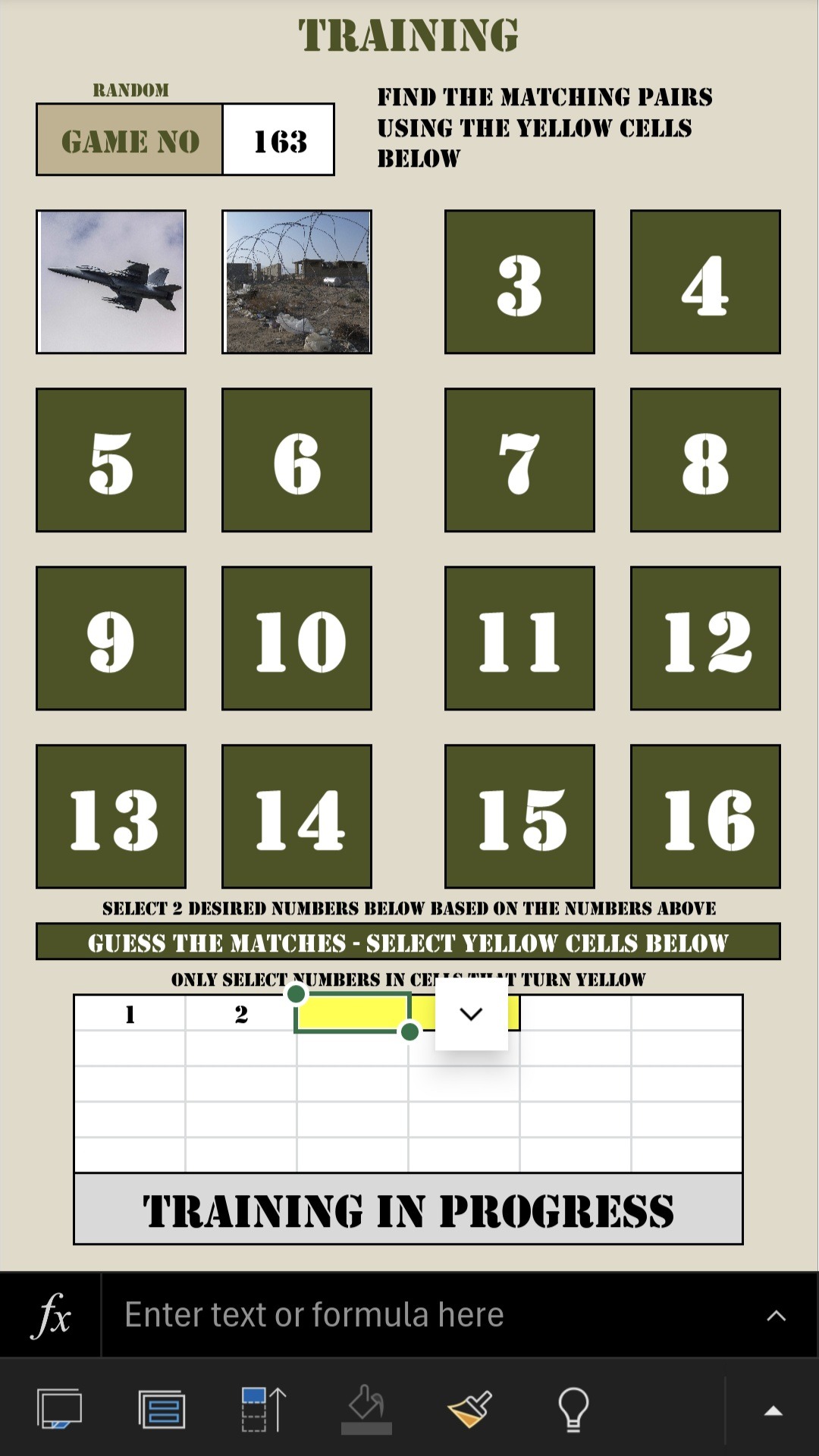
Training is a fun side game. You don’t need to play, but it is there if you want to. It is a simple memory game, here is how to play:
- Select a random game number from the drop-down list.
- Use the cells below as they turn yellow, to select 2 of the ‘cards’ shown above to ‘flip’. You will see the respective image shown.
- The idea is to remember what is where, so you can match friendly units with enemy units (see the Units & Gameplay tab to see what matches what).
- If you select a matching pair in the same turn, they will stay revealed, and will disappear from the drop-down selection options.
- Keep going until you either match them all or run out of guessing options.
- When a round of training is over, follow the instructions to clear the code and then entered data, and then you can play again if you wish.
- All 8 possible units are included here, so there are 16 cards in total.
Supplies
This is an optional mini game. You can switch this off in the Settings by selecting ‘Off’ for the Stock Replacing Alert.
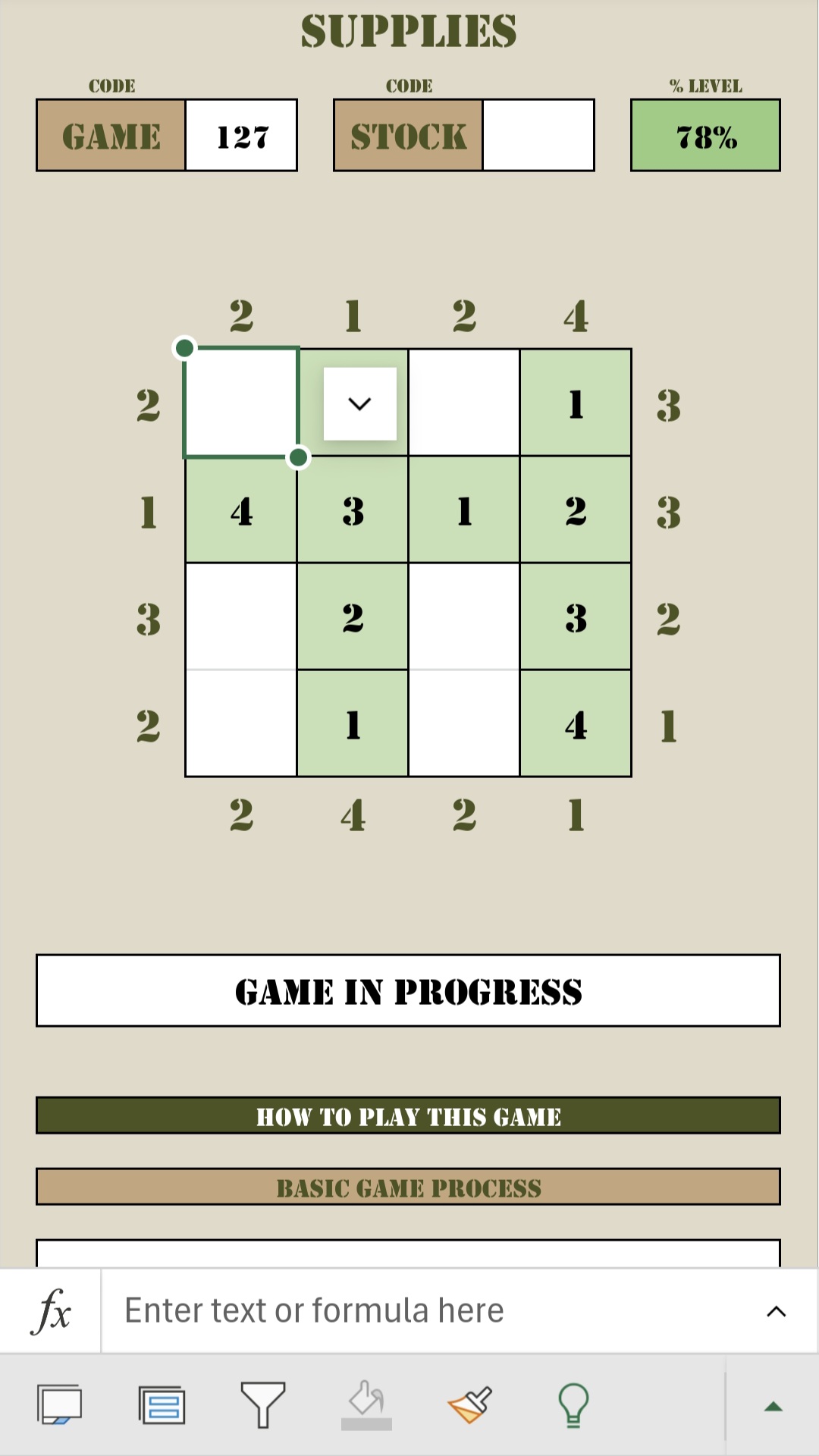
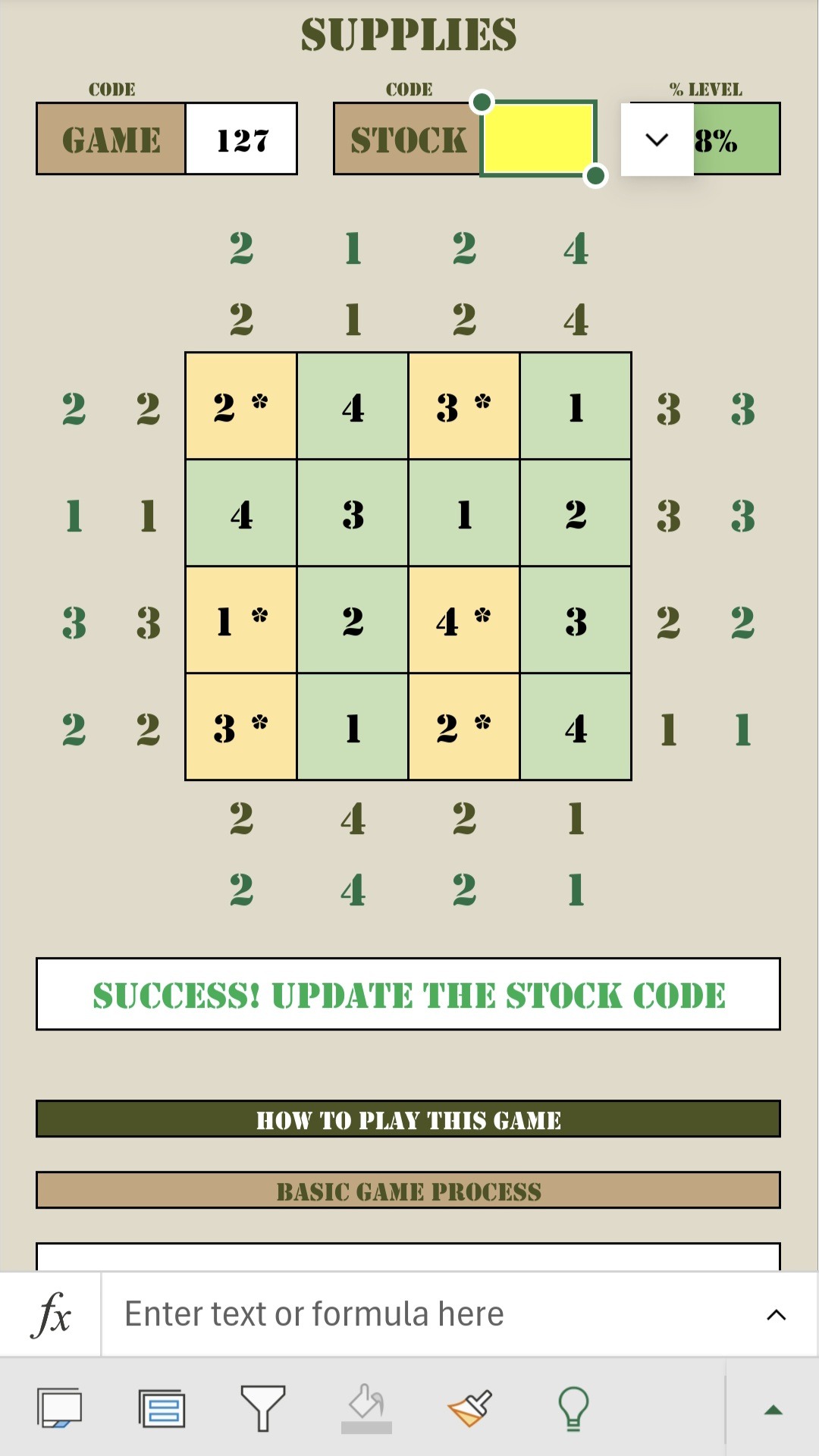
The idea behind this game is replenishing supplies for the carrier and forward operating base. This game is different to the others, and all the instructions can be found on the Supplies tab where you play the game.
You can play this game as often as you want, each successful game will result in your supplies being increased to 100%. As you then run successful missions, your supplies will drop (unless set to off), until you are required to top them up again.
You will see a notification on the Bridge when supplies need to be replenished.
The idea behind this game is that you are looking at a stack of supplies from a bird’s eye view. Each number represents the height of the relevant box, and then each number around the sides represent how many boxes you can see from each angle. You need to use logic to determine which height box is in each square. See the instructions for more details on how to play.
Your initial supplies level will be revealed once you have completed your first mission.
Those are the 6 tabs you need to edit to play the game. You will likely toggle between the Mission Codes to enter briefing or debriefing codes, and the carrier/FOB tabs to either engage in battle or to clear the deck.
When you need to change location, you will need to select the next location on the Locations tab, and while travelling, you are able to train your units on the Training tab.
The only other tab you may need to edit is the Settings tab. That has a few settings which are not required, and can be changed at any stage. They simply let you customise certain aspects.
The other tabs are all view-only. However, some of them do have selection options on the tabs. Any box in the khaki colour, shows that you can select or enter some data, which affects the reporting page. Have a look at all such tabs below.
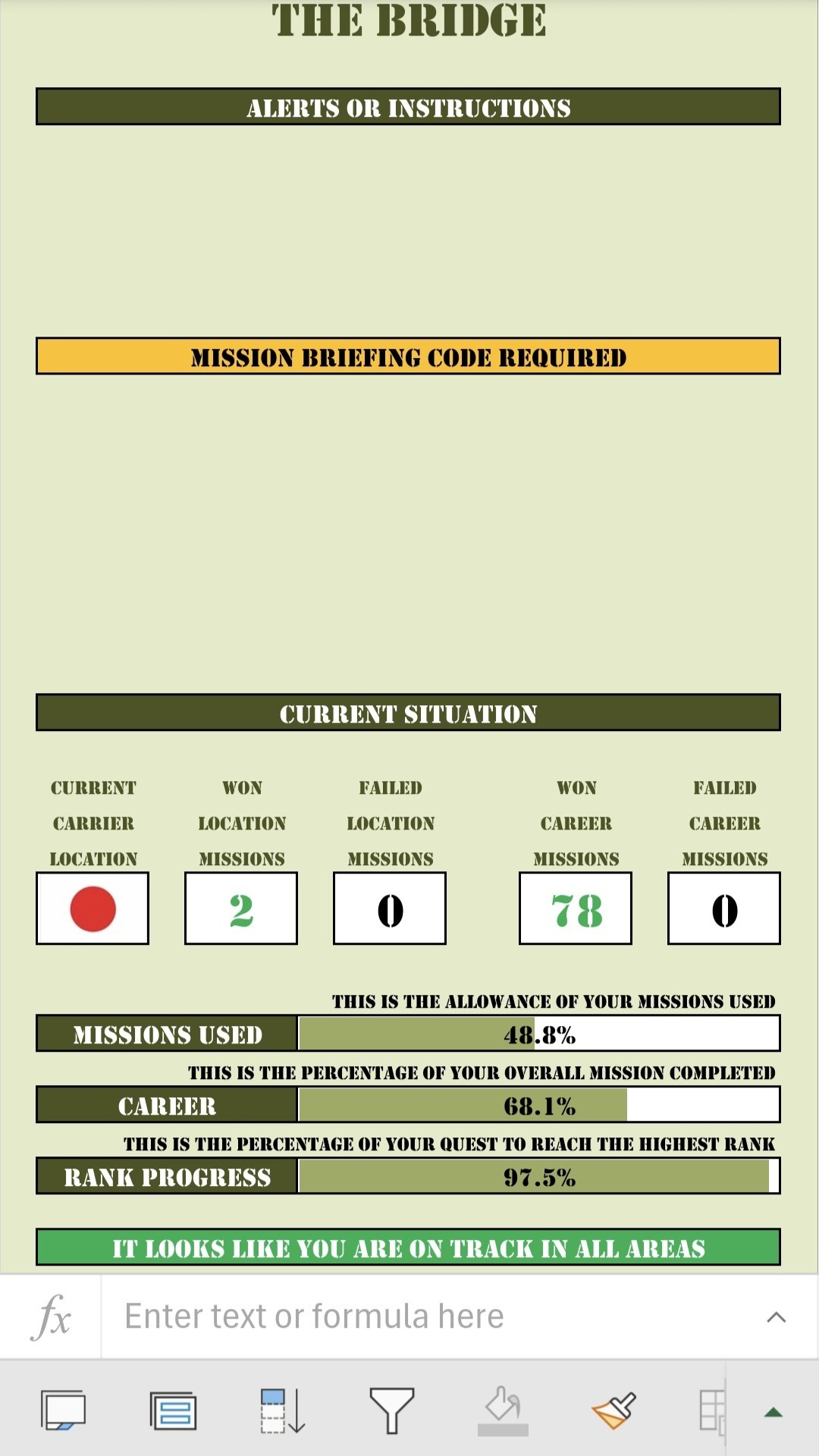
It also gives you 3 percentages:
- Missions Used (this shows what percentage of available missions you have used so far).
- Career (this shows how far you are through your overall objective so far).
- Rank Progression (this shows how far you are in getting to the top rank available).
If the first % exceeds either of the other two, it means you are not on target to meet those goals, and it will warn you accordingly.
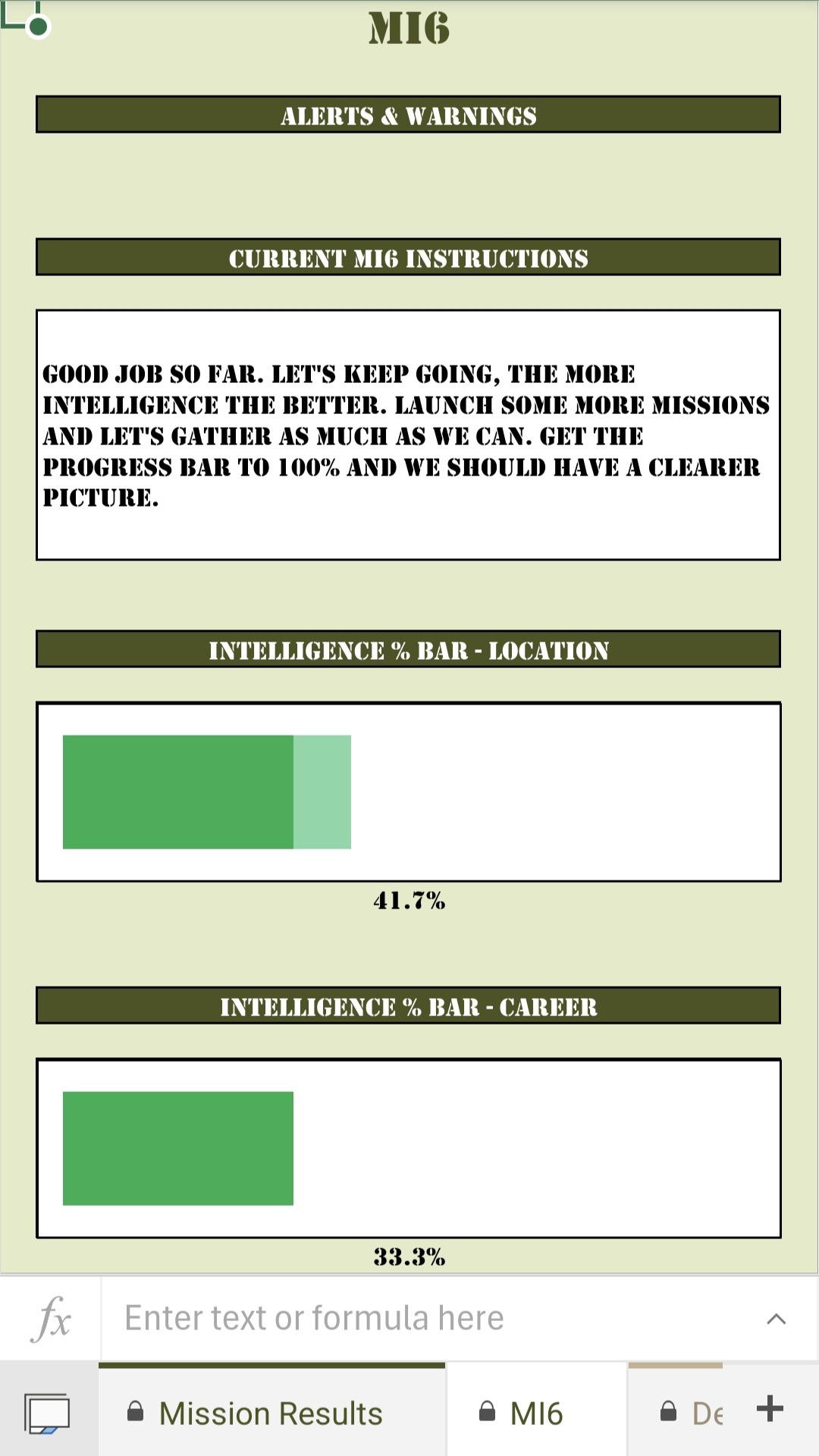
The MI6 tab shows you what MI6 require from you, and how far you are on your quest for intelligence at the current location and overall. The current location graph shows a lighter green section, which indicates new intelligence collected from the most recent mission.
These are both view only tabs.
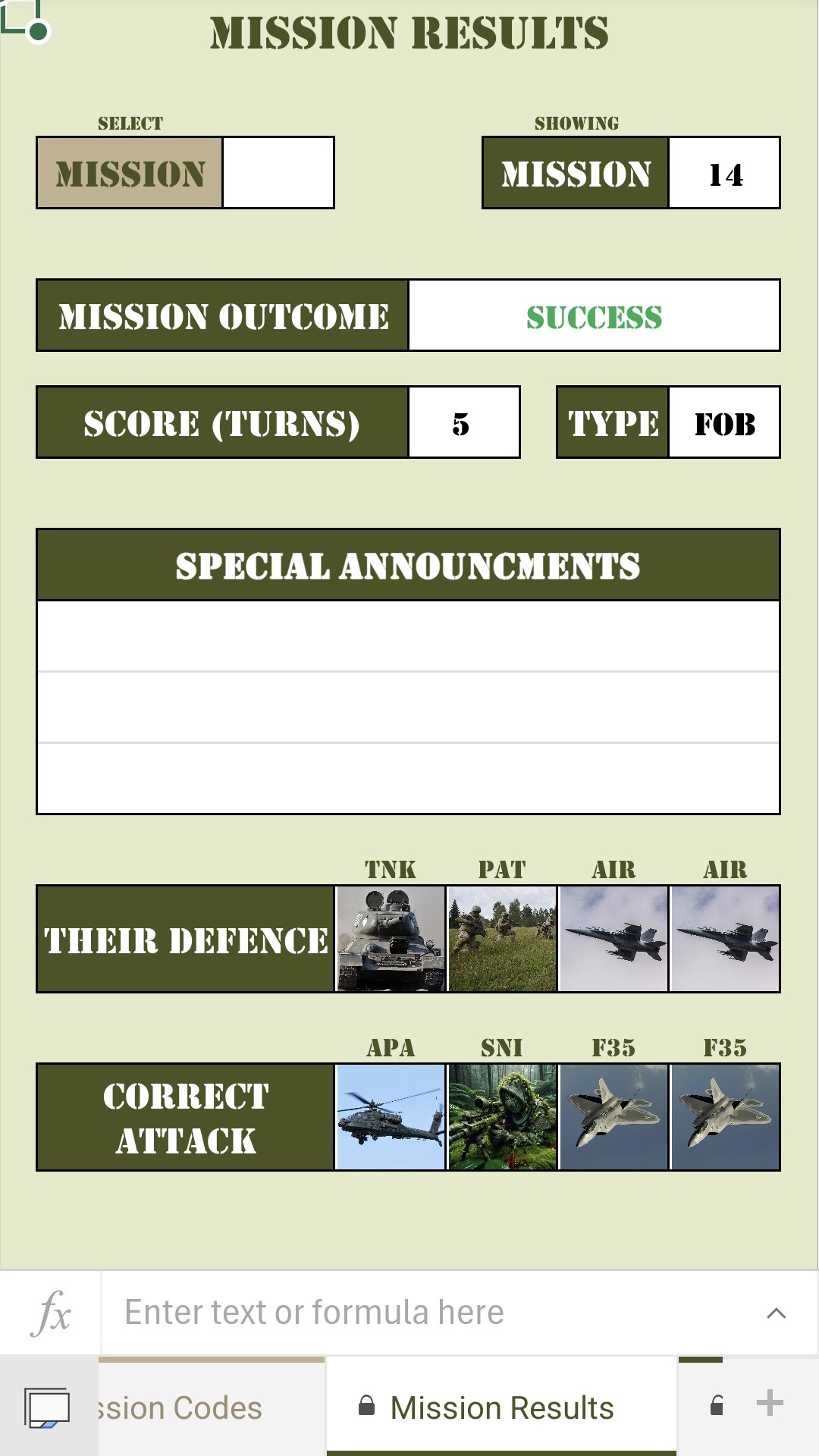
The Mission Results tab shows the results from your most recent mission as default. You can over-ride that by selecting a mission number (clear that cell to show the most recent mission), which will show the results from the selected mission. Not only will it show the enemy units, and the units you required to use to win, but it will show Special Announcement as follows:
- If a PB (personal best) was achieved (lowest number of turns to a successful mission).
- If you earned a promotion on that mission.
- If you earned a medal on that mission.
If any of these are active on a mission, there will also be a small green dot on the Mission Codes tab next to that mission.
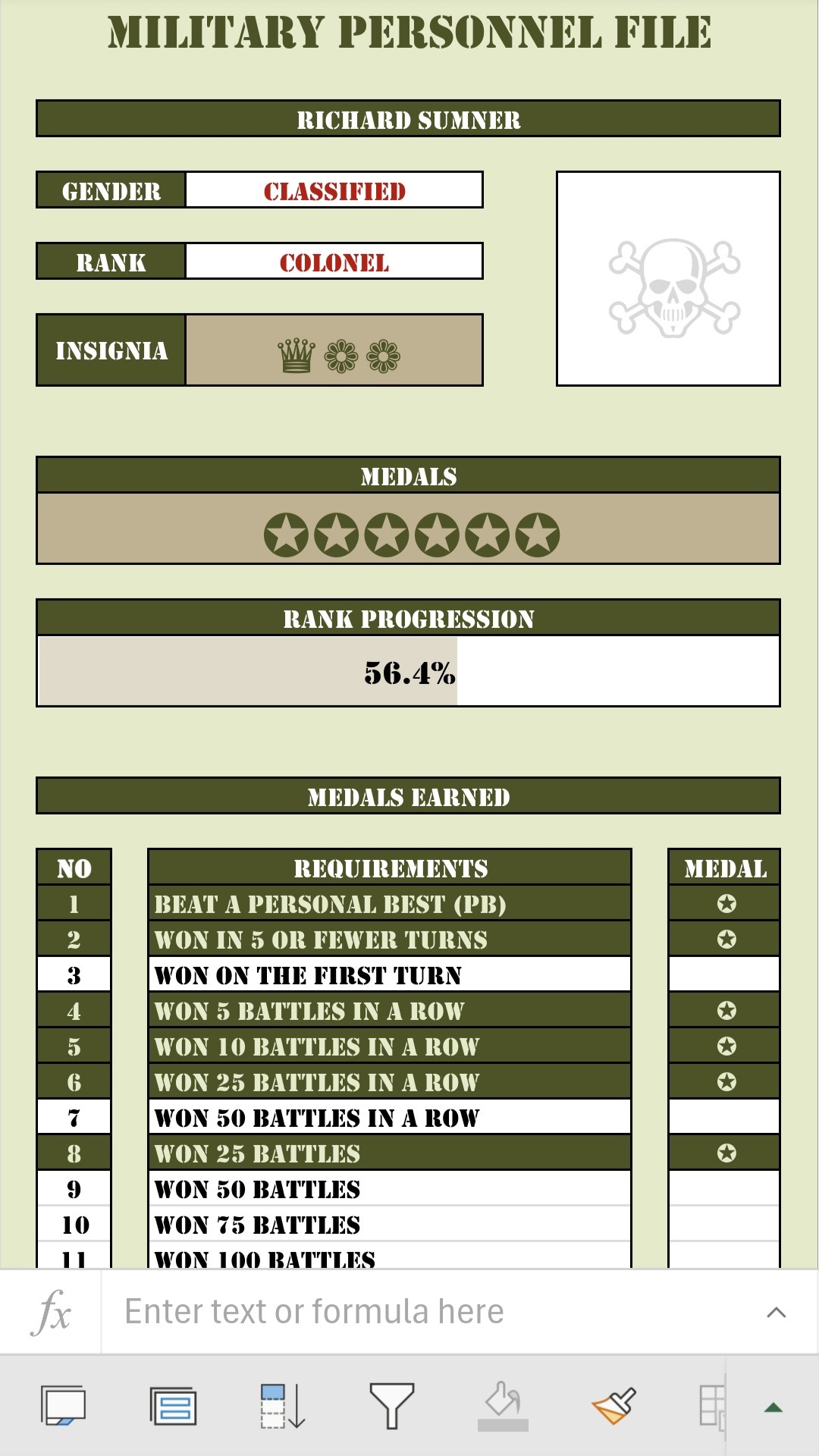
The HR File is completely automated, and shows all the details from your career. You can consult this at any time.
If you wish to edit your name and gender, you can do so on the Settings tab.
Enjoy the game!