
MOBILE-FRIENDLY CURRENCY TRADING GAME – FREE DOWNLOAD
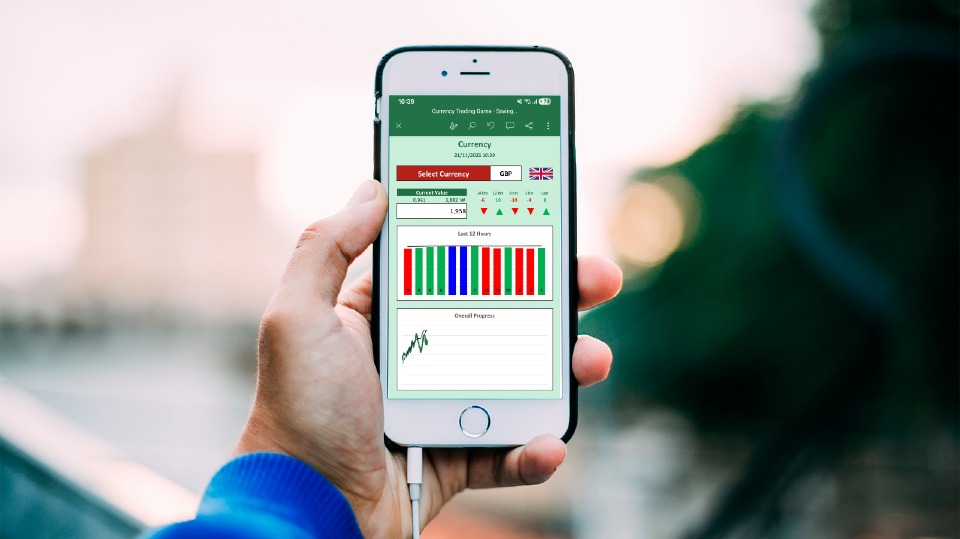
This will download as an Excel spreadsheet, and is ideally suited to playing on the Excel mobile app. I have tested it on an Android phone, but not an iPhone.
This is a currency trading game, entirely in one Excel spreadsheet, designed to play on your phone.
Please view below to see how to play the game. It can be shared with others, and if the settings match, the market will match for all players.
Version 1.04
If you’d like to know more about mobile-friendly spreadsheets for your business, please click the link below.
HOW TO PLAY THE GAME
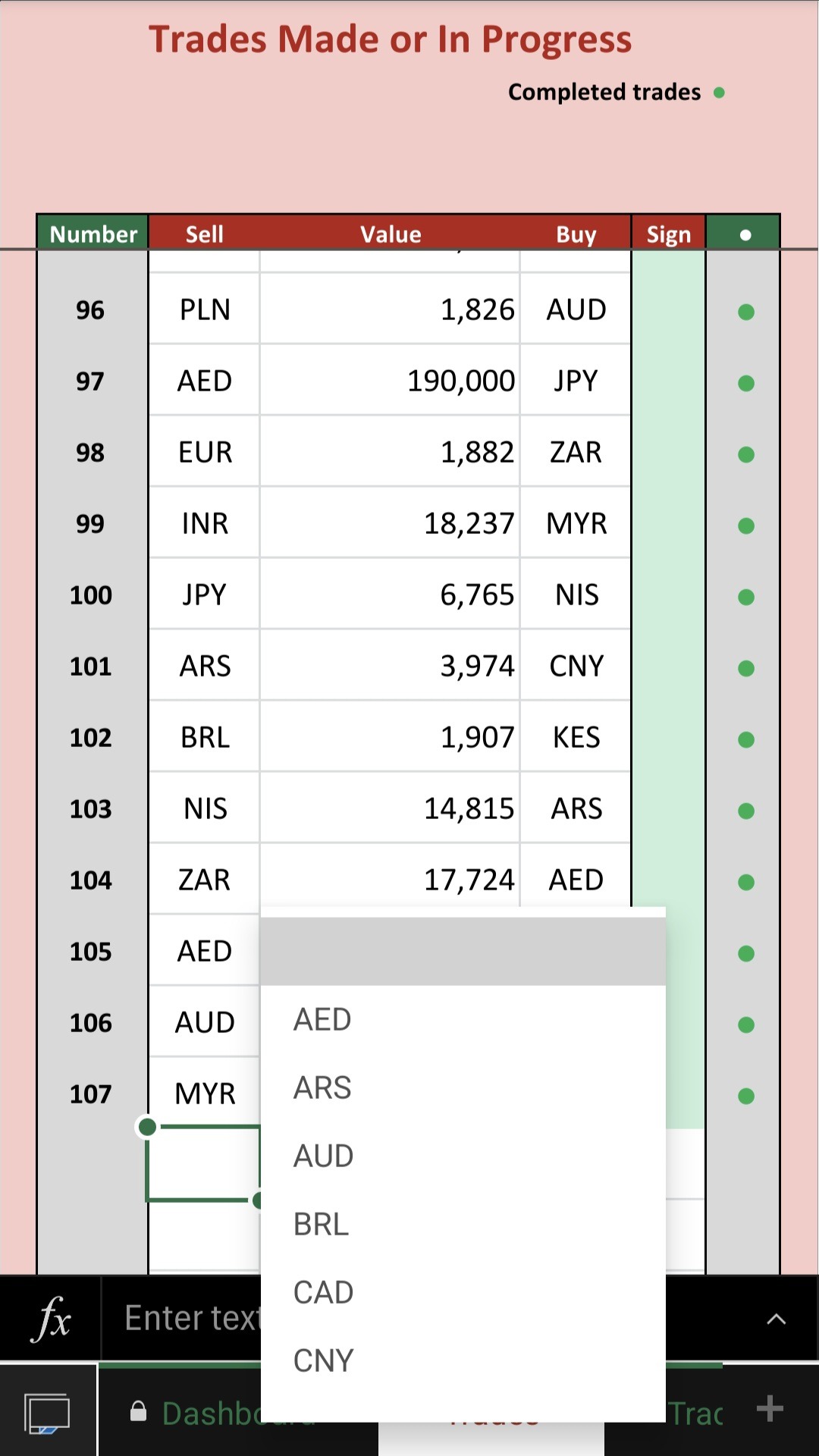
Trading Currencies
This is the main data entry tab, and where you can do all the trades that you need. While the game is in progress, you will be able to make trades. In order to make a trade, simply complete all the columns on a new row. Please only complete one new trade at a time, and when doing so, you will see a blue dot indicating that it is in progress, it will turn green when complete.
Firstly select the selling currency. This is the one you wish to sell (decrease what you hold in your wallet). Once selected, if you click on the value cell, it will show you the full value that you hold of that currency. You may not wish to sell it all, so you can type in the value you wish to sell. If you do want to sell it all, simply select the full value. Don’t sell more than you have or it will show as an error. Then select the currency that you wish to buy (or gain what you hold in your wallet).
At this point, the deal is not yet done. If you want to view the details of the deal before confirming, you can do that on the Trade Details tab (see below). When you’re ready, click the yellow cell in the Sign column, and select the option in the drop-down list. That will then turn that cell green, and it will complete that transaction.
Please note, that the currency rate changes every hour on the hour. So, if you start this process before a change, and complete it afterwards, it could change the values. The sign off time will confirm the time used for the deal.
There is a limit to the number of trades possible, so have a look on the Dashboard to see if your used trades or time is the greater value. If the time is the higher percentage, then you are within your trade allowance, if not you might need to slow down on the trades.
Completed Game Data & Results
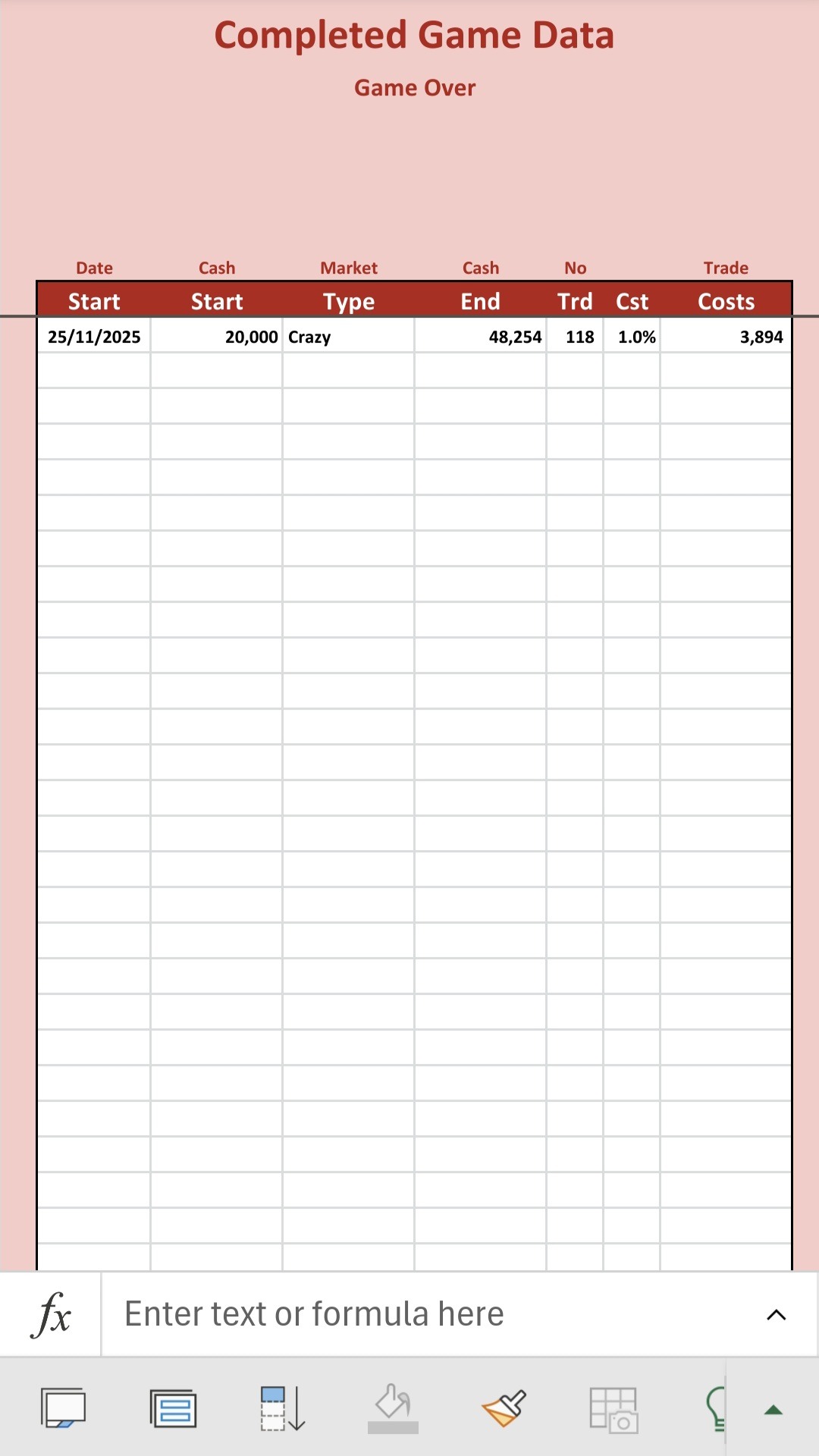
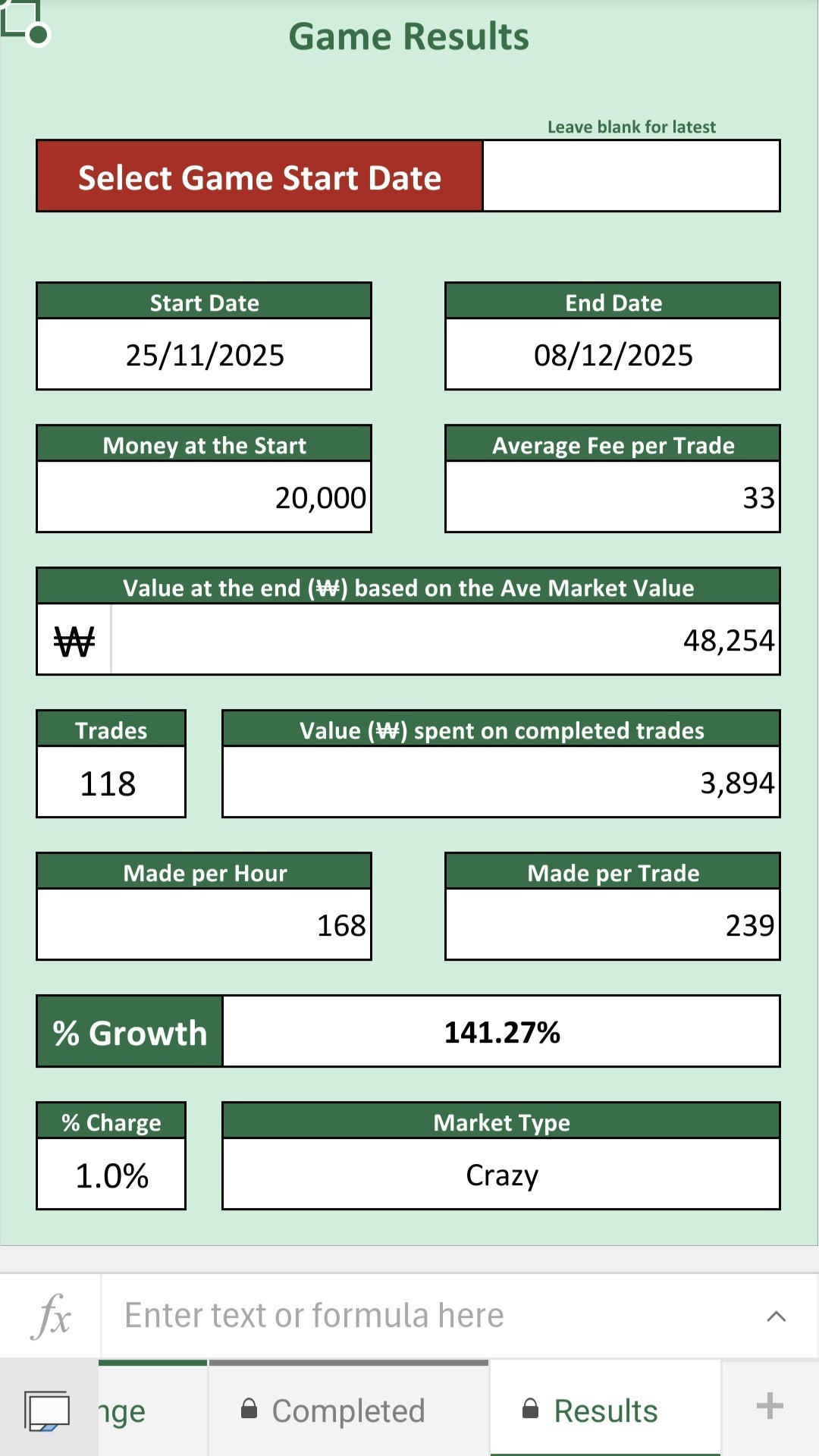
When you finish a game, you won’t be able to sign off anymore trades. It is then time to capture your results, before clearing the trades and setting up a new game. To do this, follow these instructions:
On the Completed Game Data tab, a new row will turn yellow when a game completes. Simply click on each cell, and select the given option in the drop-down list. Once you have completed the row, that is done. You can then see the results on the Game Results tab.
If you want to see the results of a previous game, simply select the relevant game start date on the Game Results tab, and those results will show. If that date cell is blank, it will show the last completed game.
Once you’ve updated the current Completed Game Data, you can clear the data on the Trades tab, and set up a new game to start in the future.
Those are the only 2 tabs you need to edit to play the game, the Trades Made or In Progress being the main tab to enter data in, and the Completed Game Data is required when a game finished, and before you reset it for the next game.
The only other tab you need to edit is the Settings tab, which gets done BEFORE starting a new game. If you wish to play along with someone else, make sure you both have exactly the same settings, to have the same market.
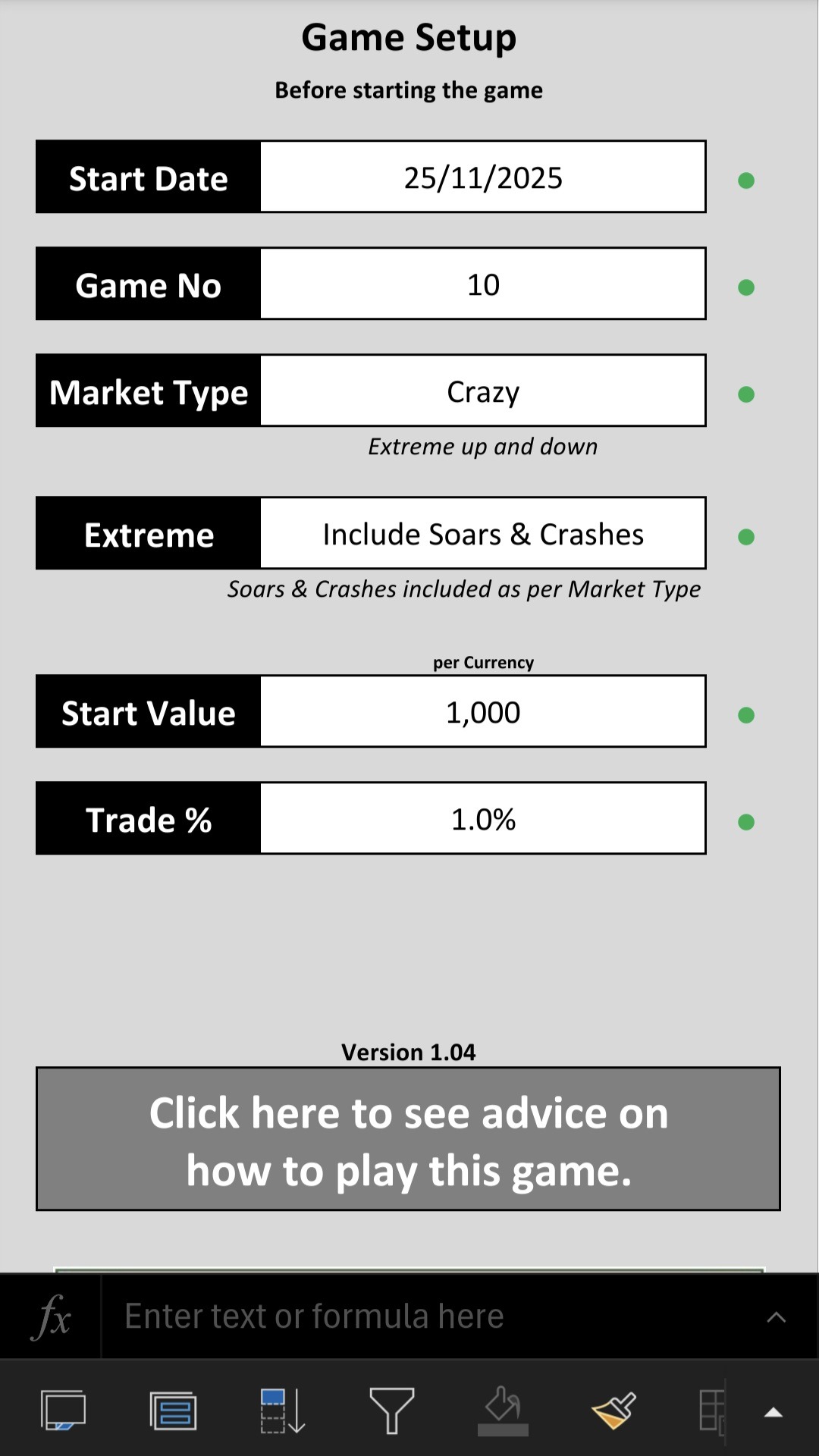
Settings
These settings all need to be completed BEFORE starting a game. The game lasts for 1 week, or 7 days. Any changes to these settings once a game has started, will only create loads of errors. If you are playing a game alongside someone else, please ensure that both Settings tabs are identical. If so, (same settings, and the game over the same period), the 2 markets will be exactly the same, so you can compete against each other. Here is what the settings do:
Start Date – Determines when the game starts. The currency changes are linked to the date, so changing this will change the currency ratings.
Game Number: These are simply different currency fluctuations. So, each game you play just select a new number to mix it up. If you do compete with someone else, make sure you both have the same number selected.
Market Types – These are different markets. When selected, it will show you what that means under the selection. I think the most fun would be the ‘Crazy’ option, but you can pick what you like. Just make sure you both pick the same if playing with someone.
Extreme – There are instances where currencies could soar or crash suddenly. You can either include these (which then defaults to the market type setting) or you can exclude them completely. The choice is yours, just make sure it matches your opponent’s choice if playing together.
Start Value – This is the value that you hold of each currency at the start of the game. Leave this as 1000 or change it as you see fit, just make sure they are all the same on multiplayer.
Trade % – This is how much you pay each time you make a trade. You can set this to 0.0% if you like, or change as you see fit. I would suggest playing a game or two first before fiddling with this setting. Again, make sure they match if playing against someone.
If you do wish to give one player a advantage, you can assign different starting values and trade percentages if you both agree. That will give you the same market. Do not have any of the other settings different, or you may as well play your own independent games, as the markets won’t match. Don’t change ANY settings once a game is in progress, or it could make previous trades null and void with errors.
The other tabs are all view-only. However, some of them do have selection options on the tabs. Any box in red, shows what you can select or enter some data, which affects the reporting page. Have a look at all such tabs below.
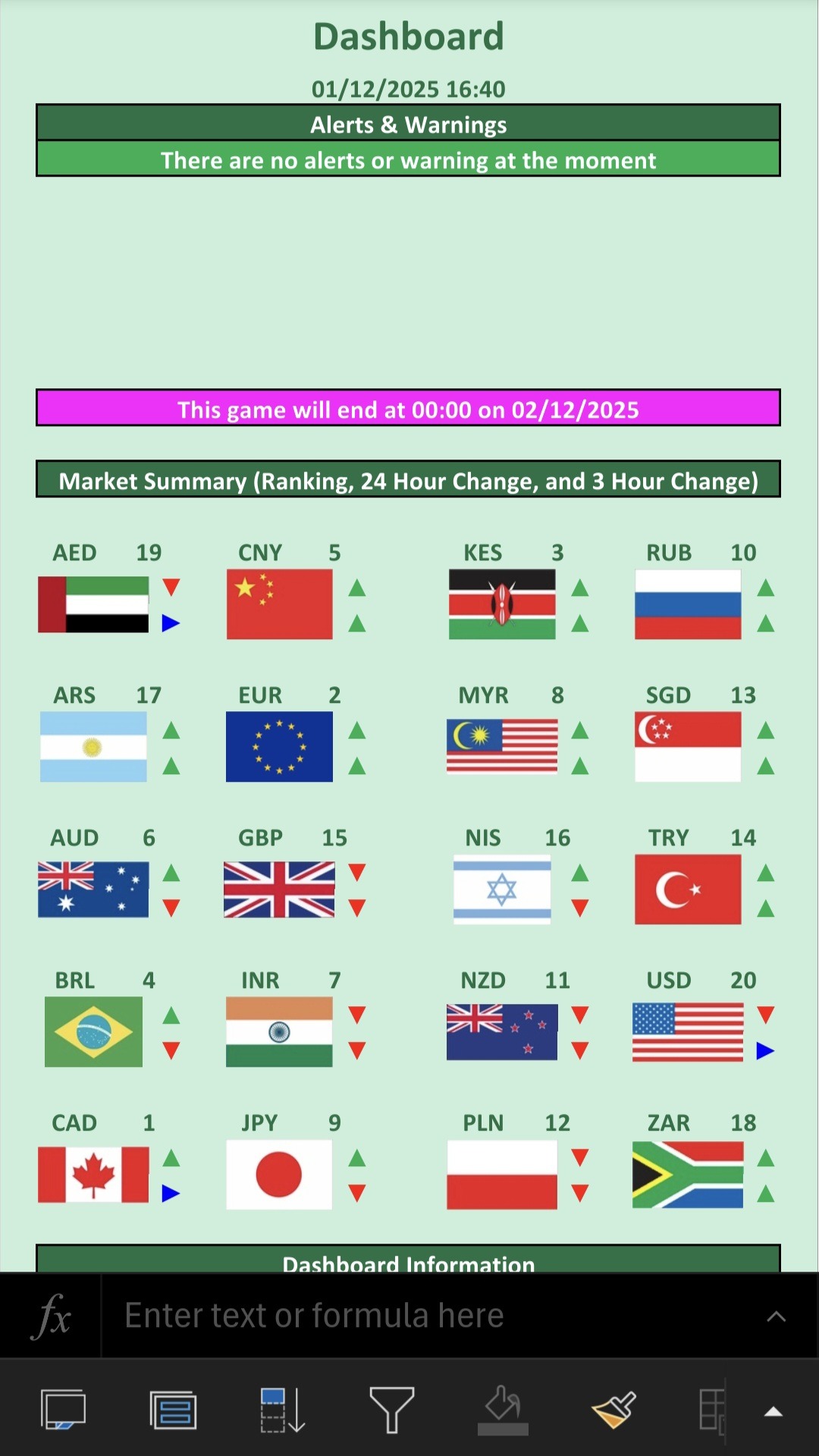
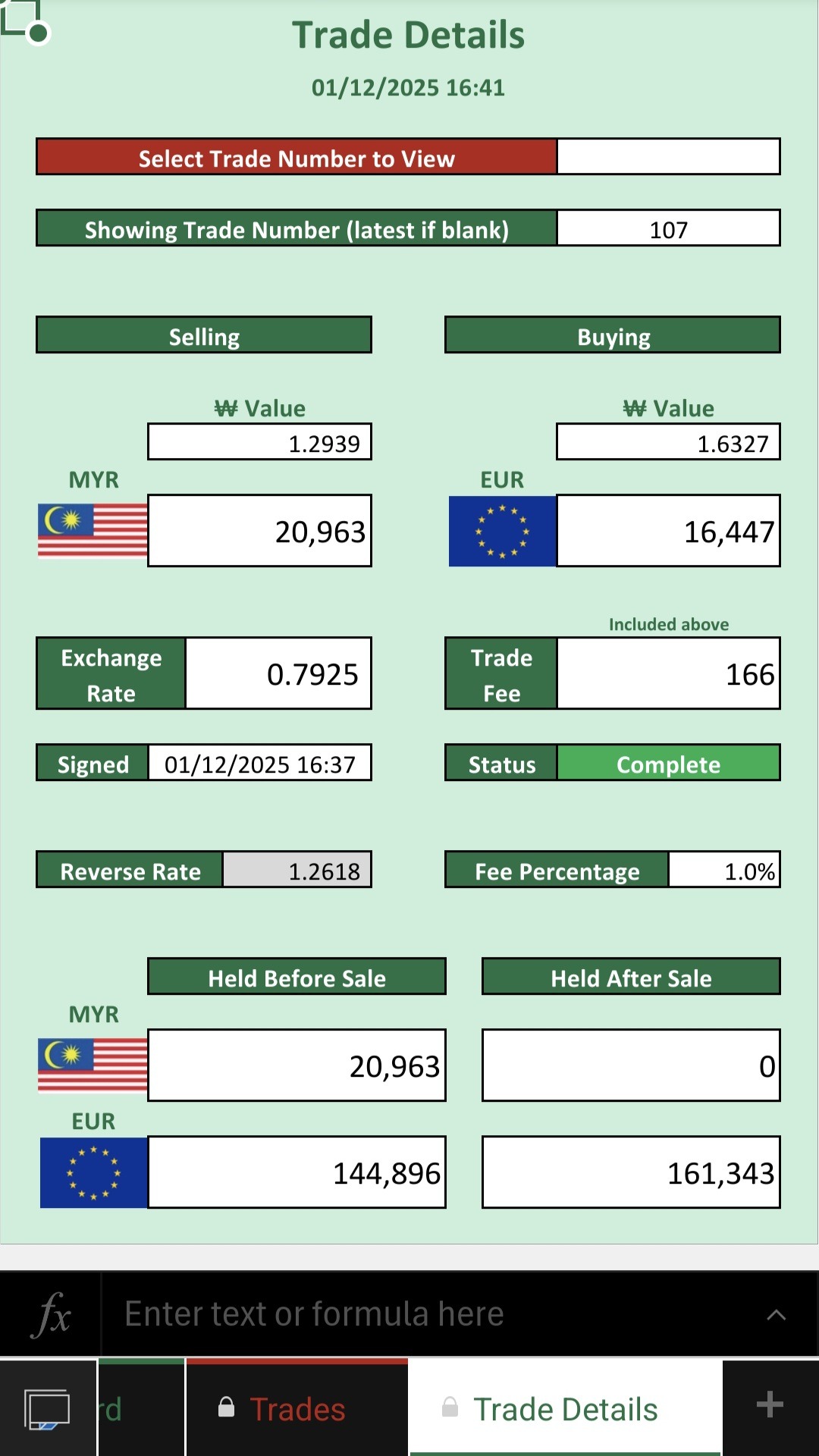
Dashboard & Trade Details
The Dashboard is an overview of the game. I would suggest reviewing this tab often. It doesn’t give detail, but it will show alerts and warnings on the top half of this tab. It then shows 2 key graphic for each currency (see on this screen what they mean). If you scroll down, you will see some other key numbers. You can see how this game compares to previous game results, and you can see what percentage of your allotted trades you have used compared to the time played so far.
The Trade Details tab shows the last (or current if applicable) trade details. So, if you are in the process of doing a trade, or have just done one, click on this tab to see all of those details. You can see the values you hold of each currency, what they are worth based on the average market rate, and how much of each you will/did hold after the trade is/was complete.
If you wish to see the details of an older trade, you can select the trade number to view. Leave this blank to view the current or last trade.
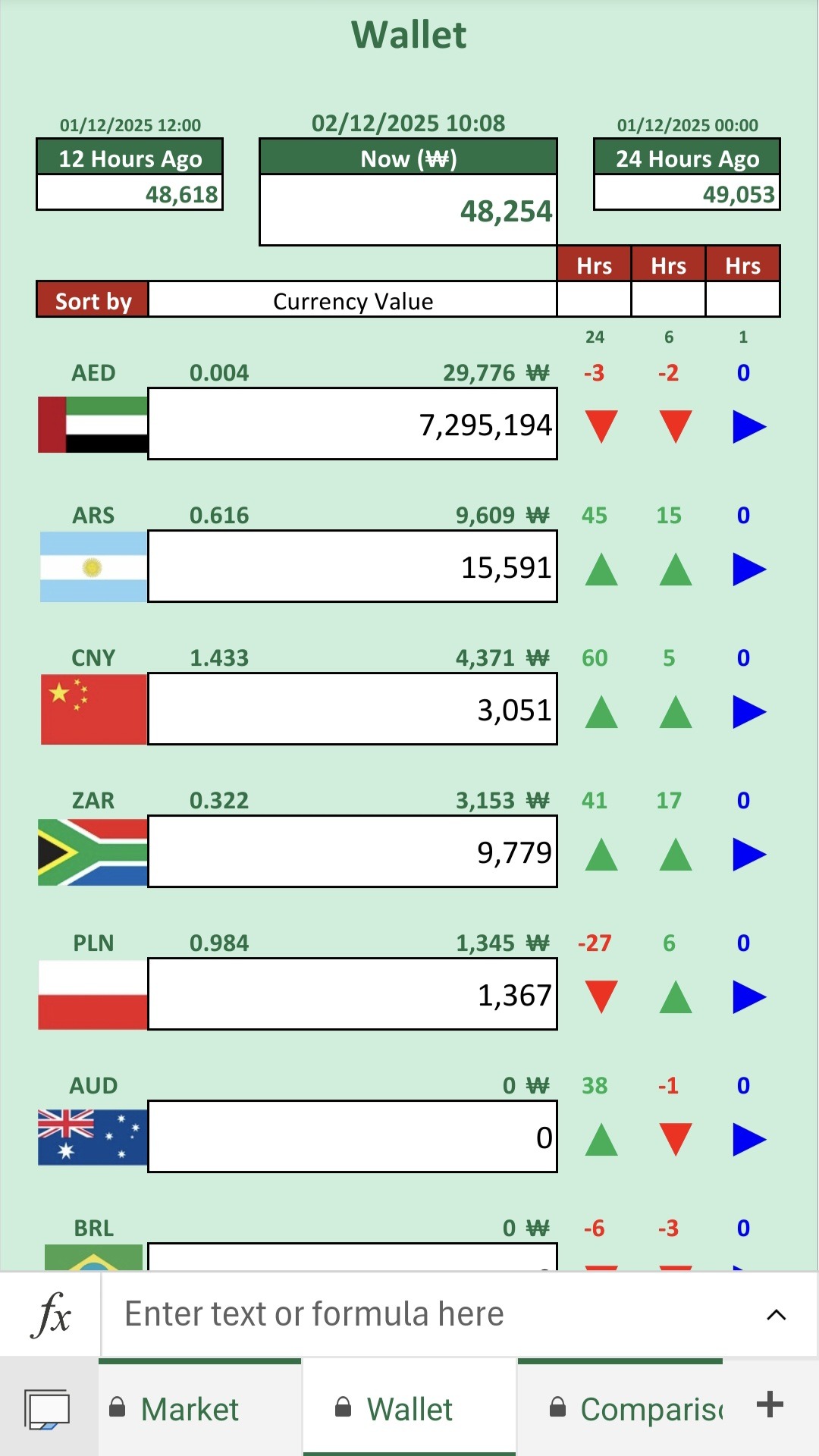
Wallet
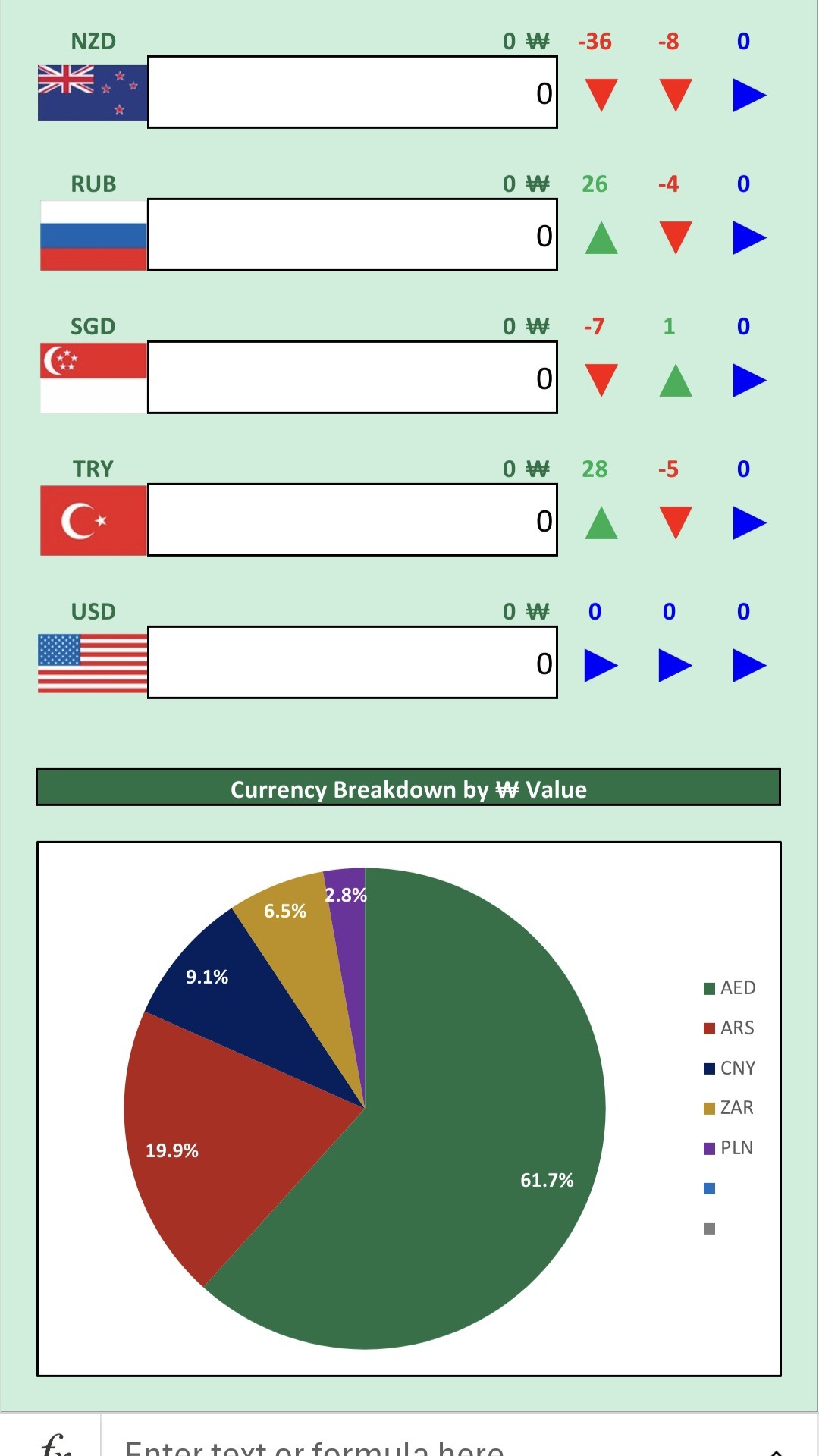
This tab shows you what you currently have in your wallet. At the top of the Wallet tab, it shows the values you hold of each currency, and gives you the changes over three periods of time. You can select which periods to show, with defaults if left blank.
The percentages (at the bottom of the page) are the percentage of your overall cash, held in each currency. So, if all your money is in GBP, it will show GBP as 100%. This only shows six top currencies (based on the & held) and combines all other currencies together as one (if required). This is done so to limit the number of graph colours.
You can choose how to sort these different currencies using the drop-down list.
When you see the ₩ symbol, that indicates the average market rate. Each currency has a rate value which is not shown. Whenever you see a currency increasing or decreasing by a value, that is the value. There is a minimum and maximum. The average market rating at any time is used as the ₩ rate. All currencies are all related to this average rate when converting so that you can compare them.
So, if all currencies improve, so does the average market rating. That would mean that those currencies that increase by the fewest points, will actually be worth less in the market, as they won’t gain on the average market rating.
Market & Currency
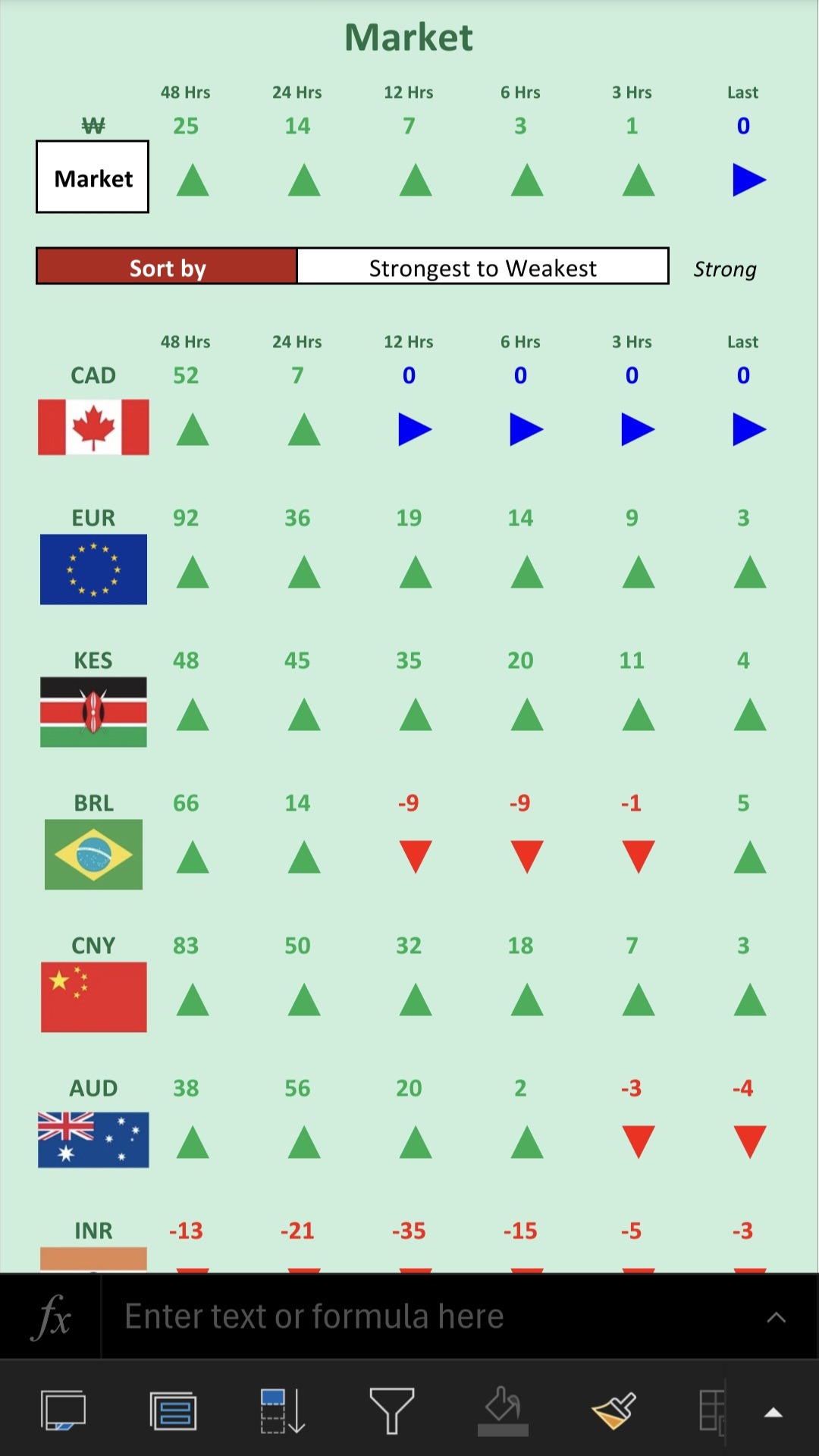
The Market shows you all the currencies (you can decide the order in which they are listed) and it gives you a number of arrow icons. Each of these icons show if the relevant currency has increased, decreased, or remained the same, over certain periods of time. Have a look at the top of the screen to see the periods. The further left, the longer the period used.
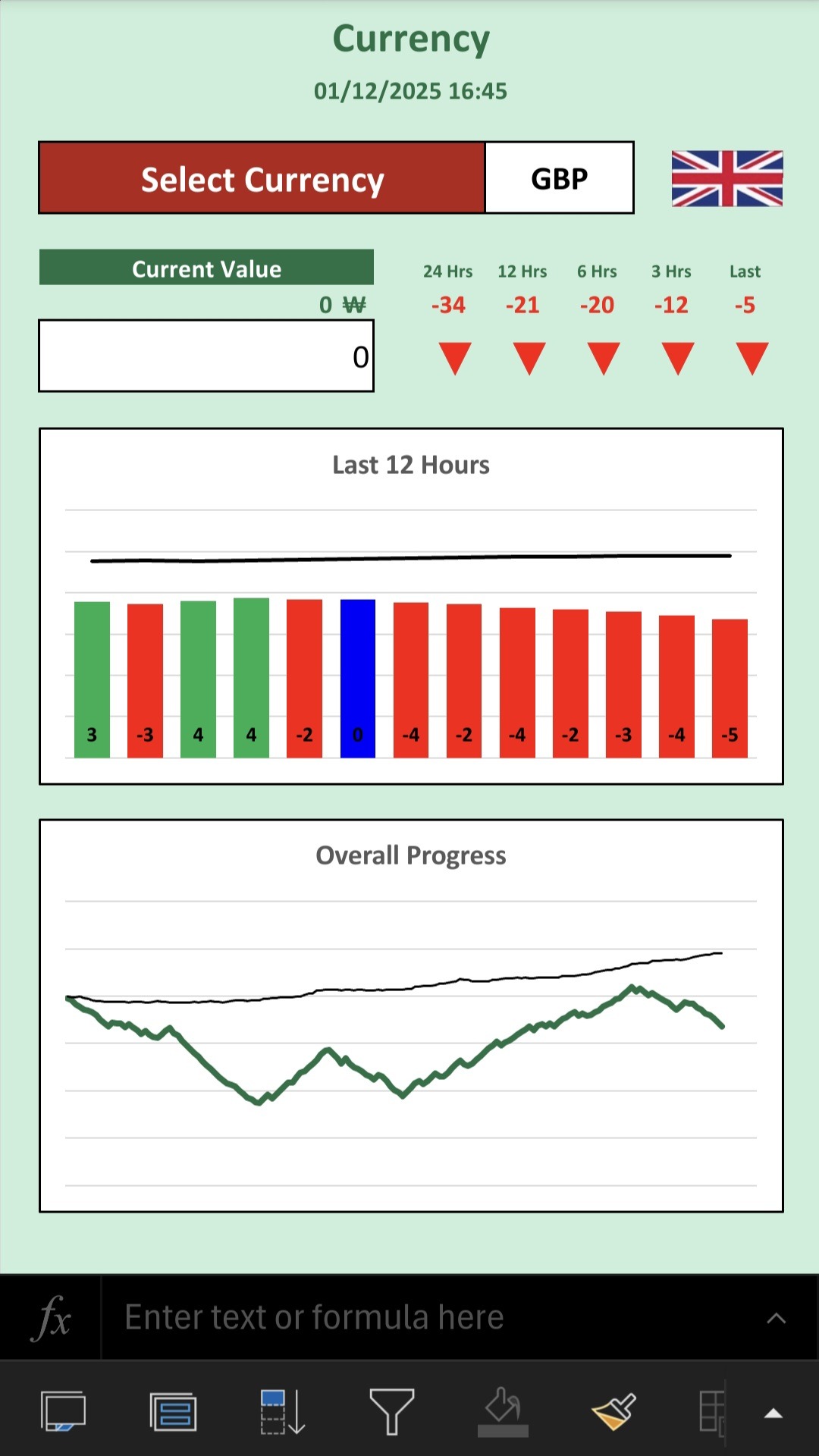
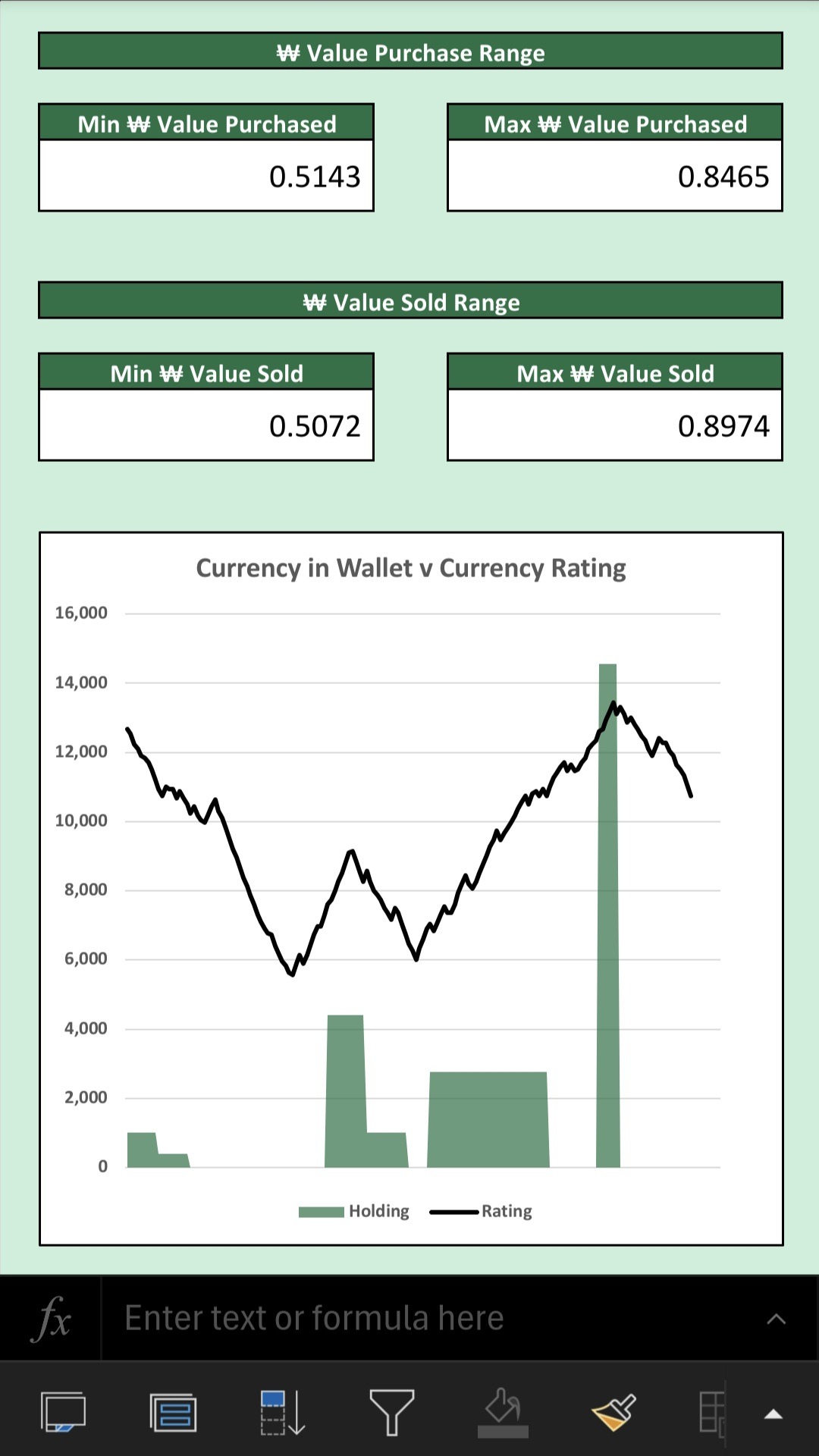
As I can’t show too much detail for any one currency here, there is also a Currency tab, where you can select the desired currency, and see more detail. You can see some of the arrows from the Market tab, as well as the last few actual market changes for the selected currency. You can also see the overall rating graph for that currency, over the duration of the game (it is set for the 14 days, so the lines will slowly fill the graph). The thin line on the graph is the average market rating.
Top Tip – There is a floor and ceiling to the market. I don’t show what that is, but if a currency goes really high or low, and then seems to not go past a certain point, it may have reached the extreme. That could well influence your trading decisions.
Bureau de Change
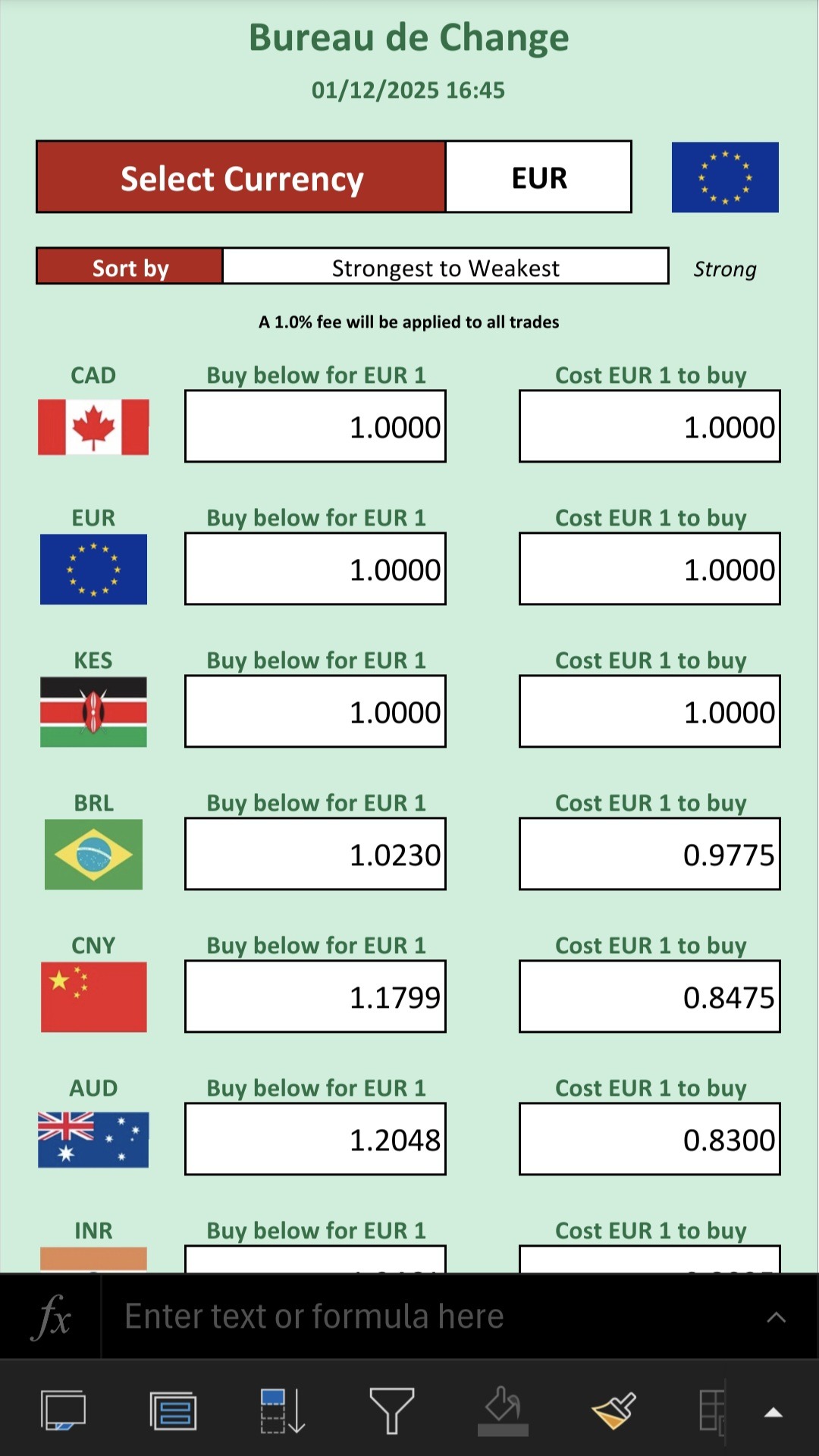
I find that I don’t often use the Bureau de Change tab, because I use the Trade tab and then view the current trade, but you can use this page to see all the conversion rates for each currency. Simply select the desired currency, and you can see the rate to buy and sell with each of the other currencies.
You can choose how to sort the currencies too.
These rates are all based on the market value of each of the currencies. It will state the trade transaction charge here, but that value is not included in any of the rates.
Top Tip – There are currency ‘trends’ which are determined by the currency changes. These trends make it more likely for a currency to go one way rather than the other for a period of time, but they are hidden. The only place which hints at these trends, is the Advice tab. Your mate down at the pub might know more than he thinks.
The second image is from the Currency tab.
Comparison & Advice
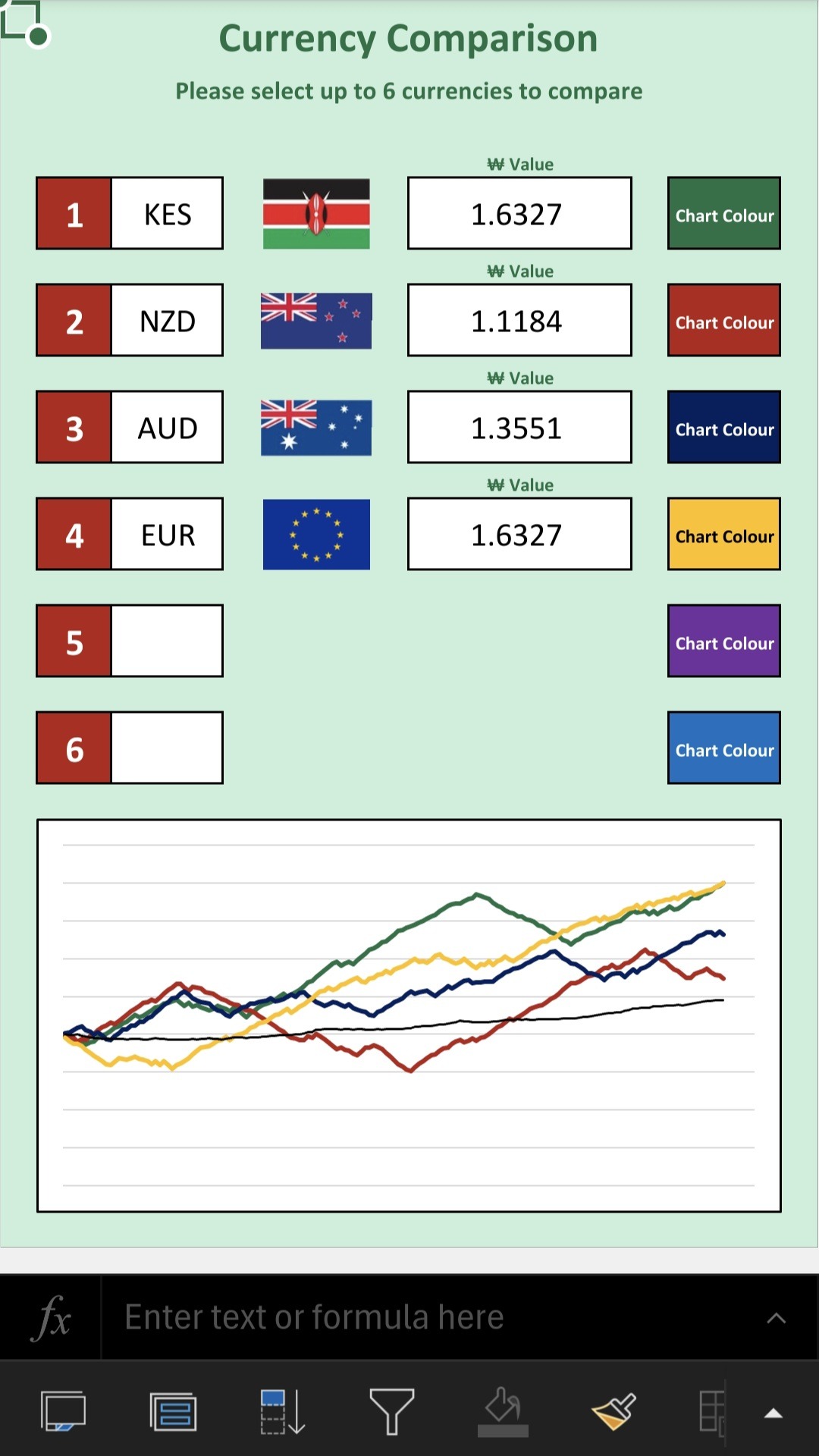
The Comparison tab lets you select a few desired currencies, and it will plot them all on the same graph. This means that you can see the movement of each currency, over the course of the game, plotted together with the average market rating.
I didn’t want to put all the currencies on one graph, as it was too overwhelming, but you can select the ones to show. You can also clear those no longer required.
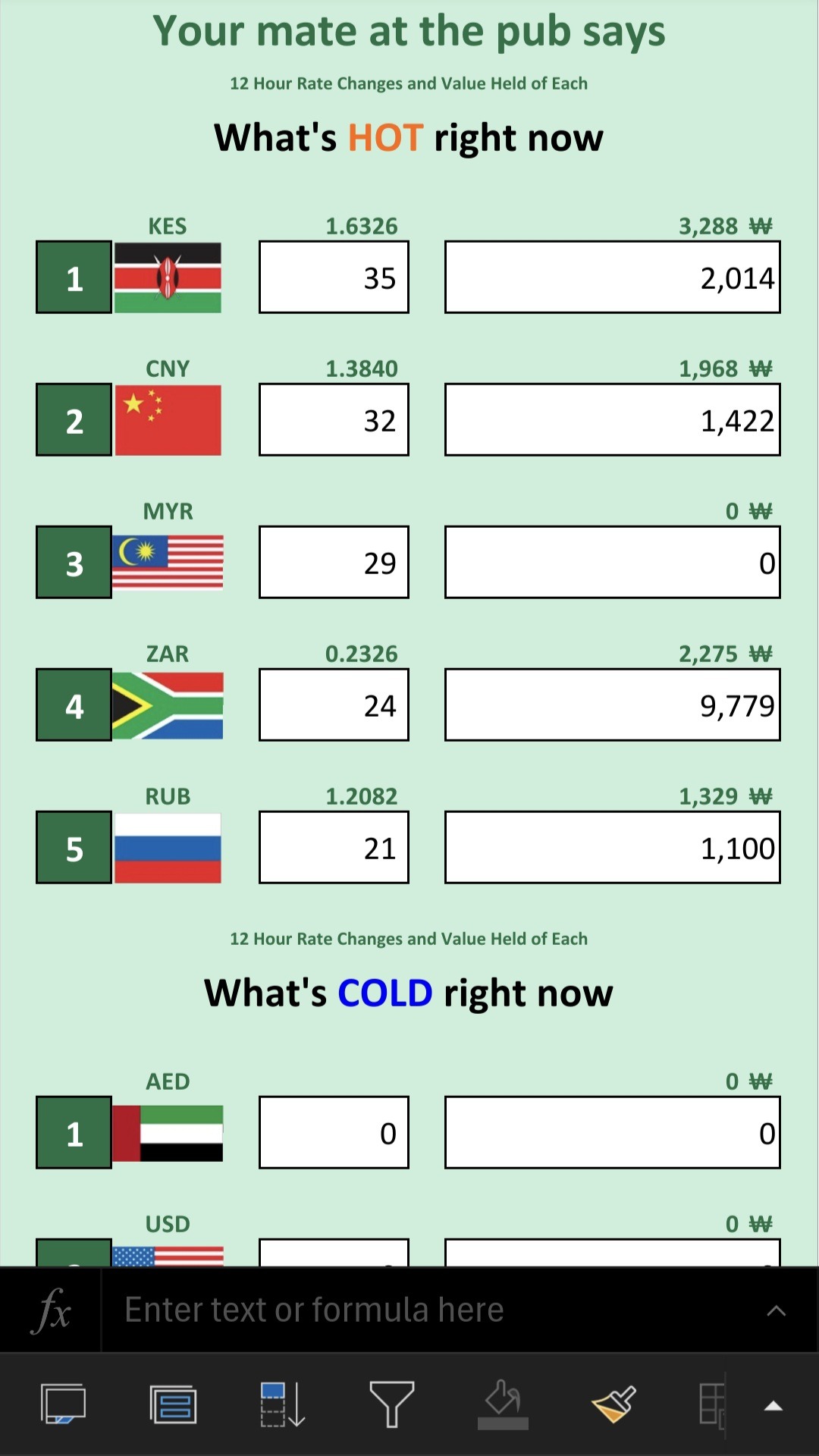
The Advice tab shows the top ‘hot’ currencies, and the bottom ‘cold’ currencies. Consider this like talking to your mate down at the pub. Possibly helpful, but likely misleading hot air. It is based on 3 aspects to get the ranking. It checks if the currency is on an upward or downward trend (not necessarily the changes, but the trend behind the scenes). It also checks if the market score has improved and by how much, and combines all those elements to rank the currencies. There could be some useful information here, but you would need to combine this with information from other tabs in order to make the best decisions.
You’ve reached the end of the page, where would you like to go now?