
FUEL CONSUMPTION & MILEAGE TRACKER – FREE DOWNLOAD
This will download as an Excel spreadsheet, and is ideally suited to playing on the Excel mobile app. I have tested it on an Android phone, but not an iPhone.
This is a tool to track your vehicle fuel consumption and business mileage, entirely in one Excel spreadsheet, designed to play on your phone.
Please view below to see how to use the spreadsheet. It can be used on the mobile for 1 year, then start a new spreadsheet for the next year (keep a blank copy to use each year).
Version 1.00
If you’d like to know more about mobile-friendly spreadsheets for your business, please click the link below.
HOW TO ENTER DATA
Fuel Intake
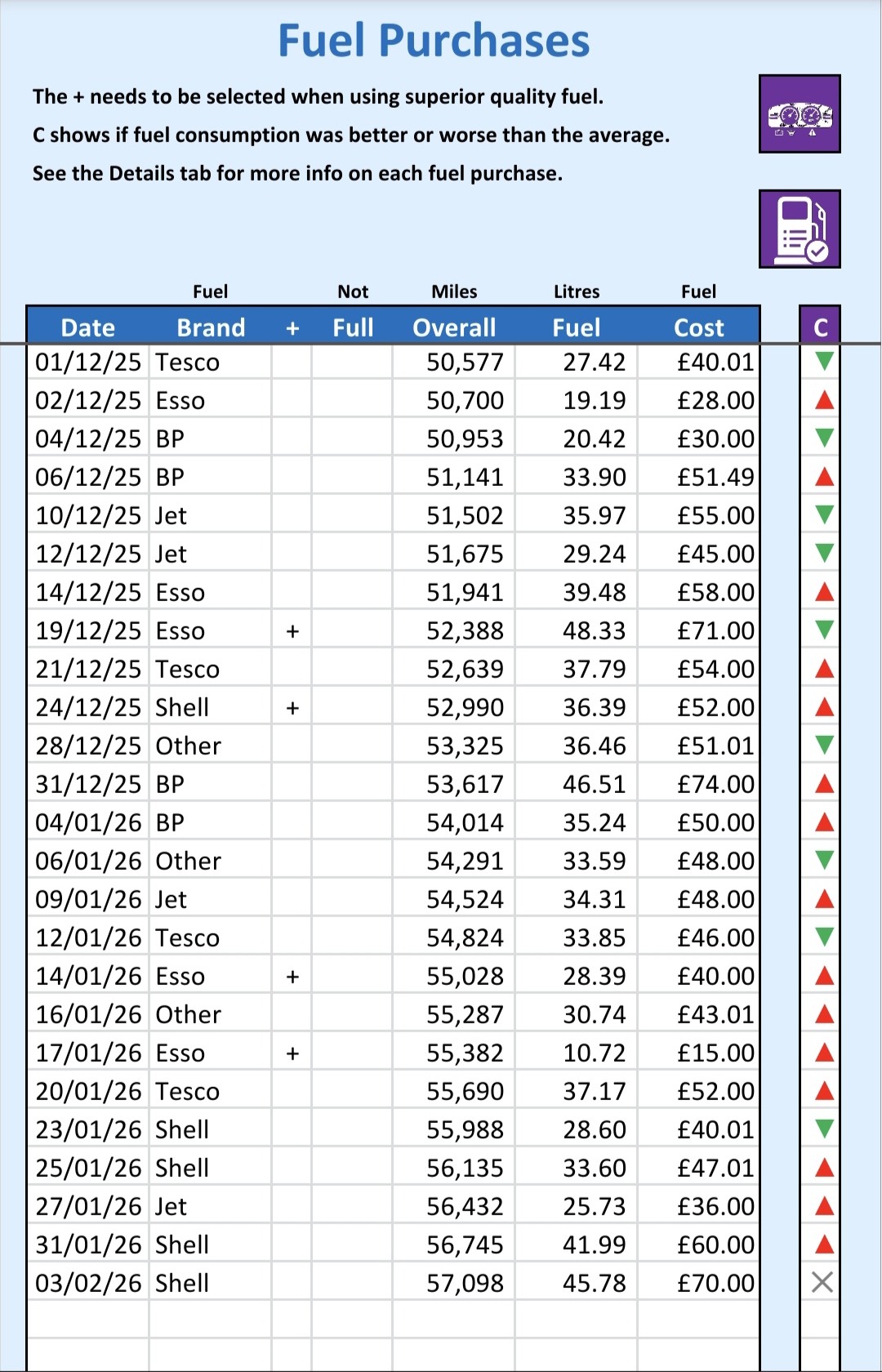
This is the tab which you fill in whenever you put in fuel. One of the main reasons I made this in a mobile-friendly format was because I kept losing slips and forgetting details, so now I can fill this in on the go.
Enter the date, and then select the brand of fuel (which you can set up for the main brands you use, and use ‘other’ for the others). Then select the + if you use a superior fuel, as this separates the two on the reporting. The Not Full column only gets ticked if you put fuel in and DON’T fill the tank. The reason for this is that some of those figures can’t be used, as it assumes a starting point (full tank). So, make sure you do tick that column if you don’t fill the tank. Then enter the overall mileage (not the last journey, the overall mileage on the odometer. Then enter the measure of fuel added (either litres or gallons depending on your settings). Lastly, enter the cost of the fuel. There are some options with regards to the fuel unit of measurement and the currency icon, as well as whether you want to use miles or kilometres in the settings.
The header here will stay in place as the text scrolls up under it, so always make sure that you’re entering data into the next available row. If you forget a fuel top-up, copy any entered data, and paste (using paste values) into the next row down, and then re-ender the missed entry into the new row. The formulas relate to the row above or below for calculations, so they need to be in order. If any cells turn red, the data is invalid, and any that turn yellow, require data.
Business Use Mileage
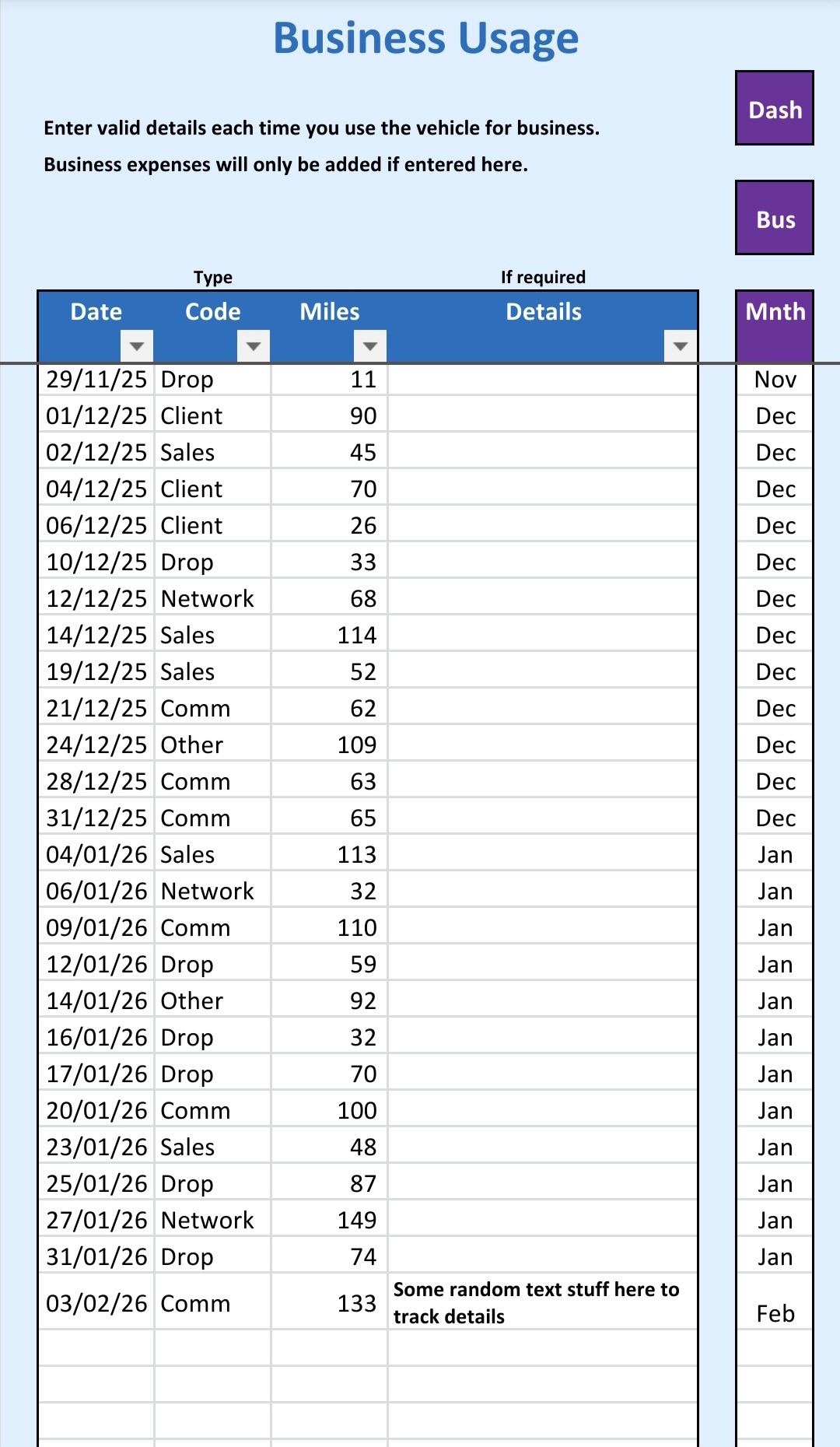
This is what you use each time you use the vehicle for business use. Each row represents a journey.
Enter the date, and then select the code. These codes are definable codes which replate to the most popular journey types, so you can categorise your journeys. Set these up in the settings. You then enter in the number of miles (whole miles only) for the journey. I usually enter the return trip mileage, but you need to do what works for you and what is required legally, which may change. The last column is for some notes. The column hight will expand with the notes, so you have space to type what you need, and the text is smaller. This is mainly for your own information or as details should you need them, but it does not affect the spreadsheet in any way.
Incidentally, there are two different date formats available in the settings, one for most of the world, and one for our American friends. My advice would be to select that, and then when entering dates, enter them as “dd mmm” to let the spreadsheet re-format them as selected. In fact, I have included a drop-down list in the dates, for the last 7 days, so you can just simply select the desired date in most cases.
If you forget a journey here, you can simply add it to the bottom of the list, as you can sort this data using the filters provided. These don’t need to be in order of occurrence.
Those are the only 2 tabs you need to complete as you go, but before you do so, please set up the Setup Tab as shown below.
Start with the Setup tab, set the spreadsheet up for the year, and then complete the above two tabs as required. Then at the end of the year, complete the Setup tab with the year end mileage.
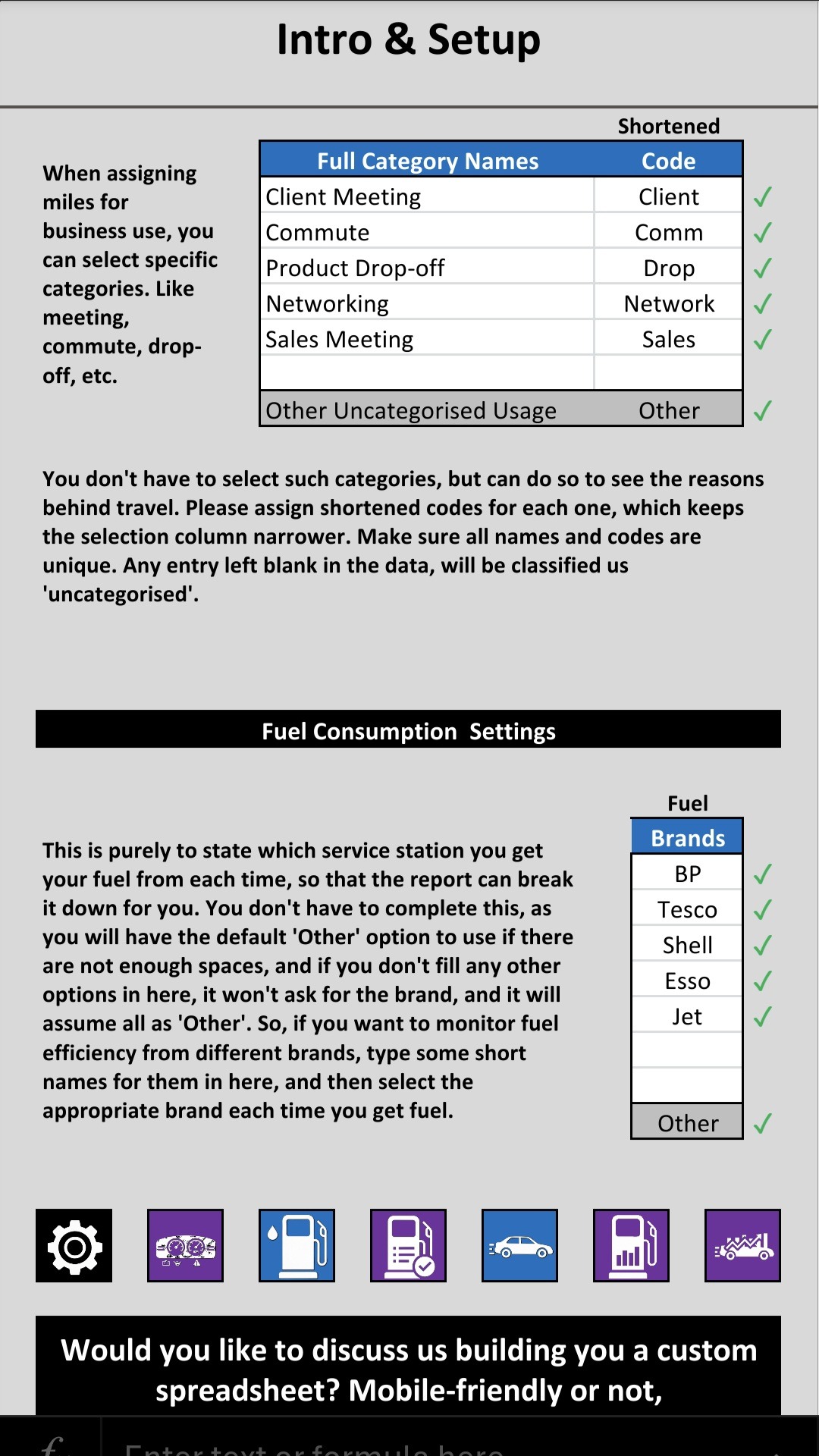
Intro & Setup
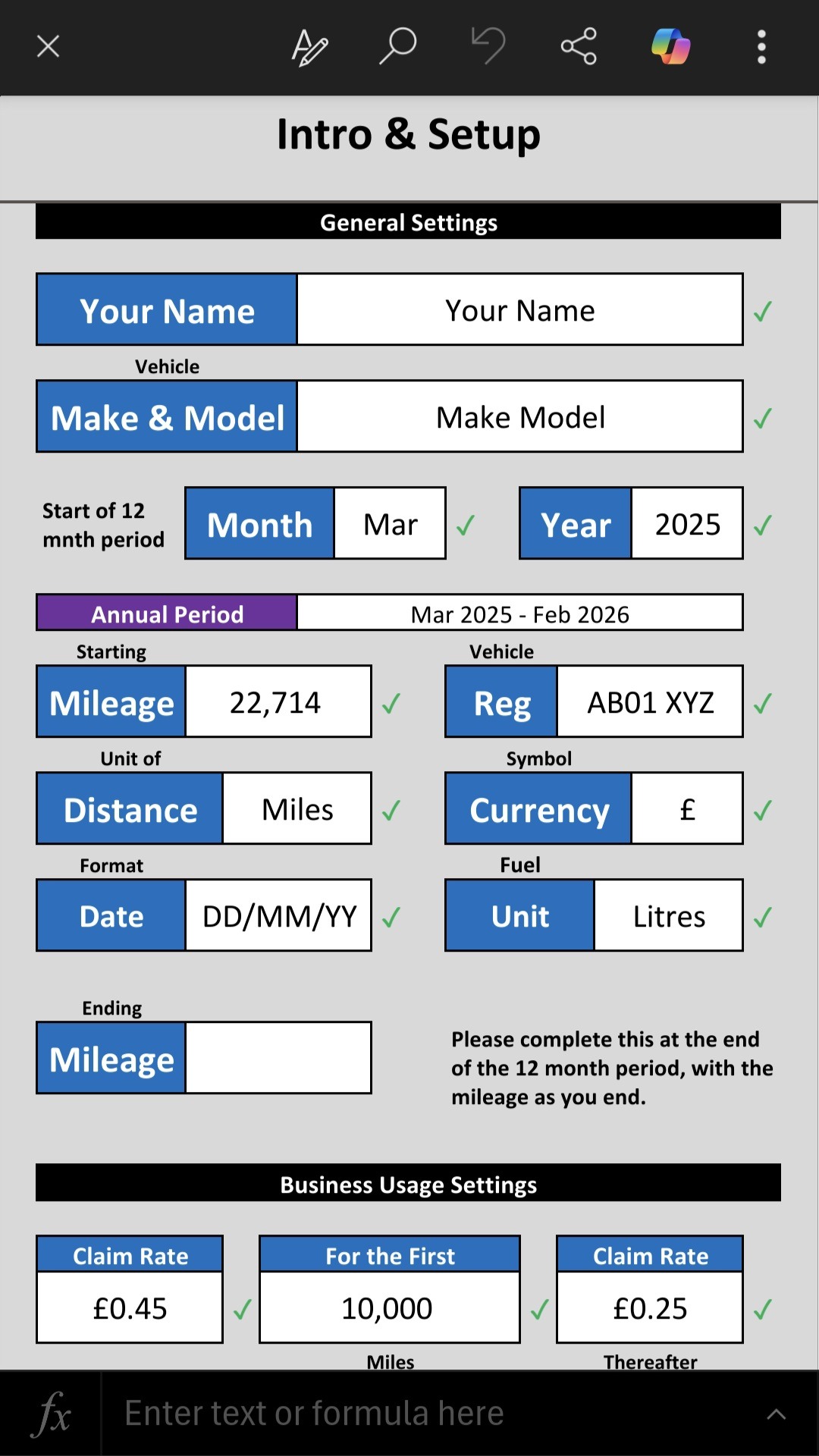
This is what you set up before using the spreadsheet. Each spreadsheet deals with 12 months of data, so select the starting month and year, and then that will set up the annual period. Keep a blank copy of the spreadsheet to use each year. Or, do a save as, and then clear out the data from the previous year to start a new year.
Enter your name and the vehicle make and model. This won’t really do much other than to help you identify this spreadsheet later on. The same goes for the vehicle registration.
The starting mileage is the odometer reading as of midnight when the 12 month period starts. If you previously used this spreadsheet, then the closing odometer reading of the previous spreadsheet, should be the starting reading of the new one.
The currency symbol, distance measurement, date format, and fuel unit measurement are all to customise this for you. If your odometer is in miles, and you fill up fuel in litres, then select miles and litres. The ending mileage will be required when you reach the end of the spreadsheet period.
You then have 2 claim rates and a mileage. In the UK, there is usually a rate for the first miles under the threshold, and then a different rate thereafter. So, enter the first rate, the threshold, and then the second rate here.
You can then enter the list of trip categories. Enter both the full name (for you) and the shortened code to use on the spreadsheet. Make sure there are no duplicates. You can do the same for the brands of fuel, this time only short names. Any options here will be available for selection on other tabs. If you remove options here once they have been selected elsewhere, they will show up as red alerts where selected.
The other tabs are all view-only. They will automatically updated based on data on other tabs.
There are links to the other tabs from these reporting tabs.
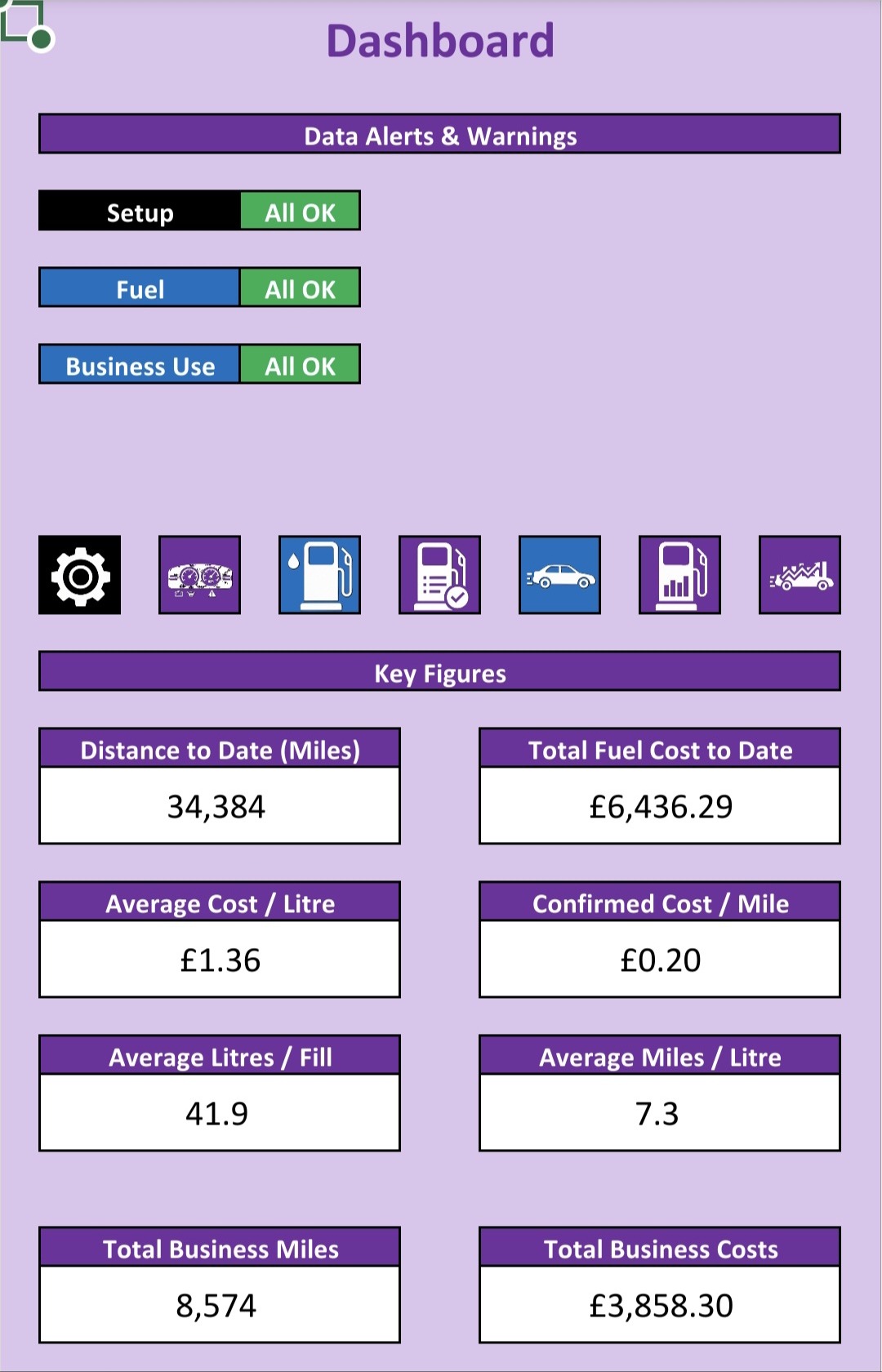
Dashboard
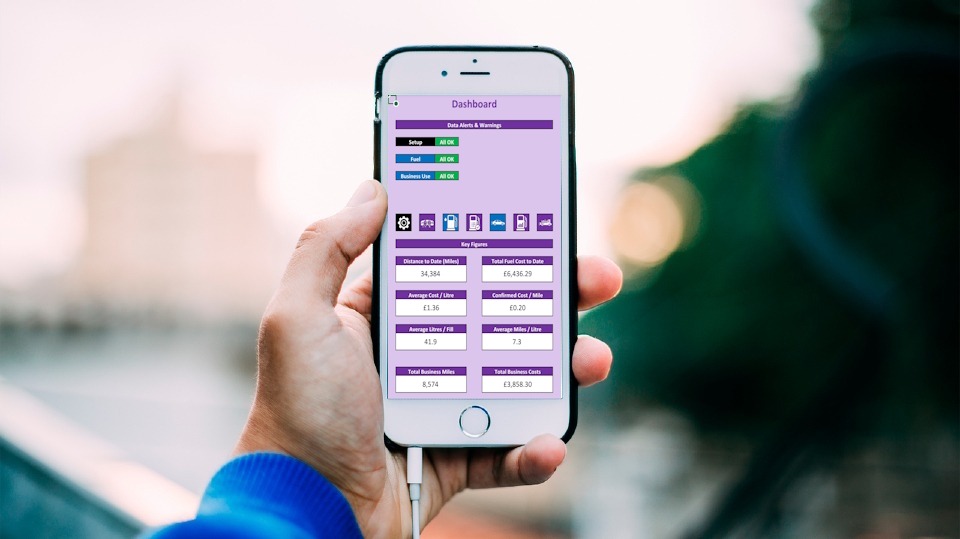
The Dashboard is an overview of the key numbers from both other reports. It also shows alerts from other tabs like missing or incorrect data.
I’ll explain these numbers here, as they appear on the other reports, but there is more to explain about those. The distance to date is the distance travelled during this period, usually until the last fuel intake. The total fuel cost is the cost for all the fuel fills this period. Average cost per litre/gallon is the average price of the fuel for all the fill ups. The confirmed cost per mile is the average cost per mile, which is only calculated if the tank was filled before and after the journey. average litres/gallons per fill is just to show you how much fuel you usually buy each time. Average miles/KM per litre/gallon is how far you travel on average per unit of fuel. The total business miles are the total miles travelled for business this year, and the total business cost is the value that you can claim for those miles.
There are also little square ‘buttons’ on this tab and the others. Those are for easy navigation to the various tabs of the spreadsheet. So once you’ve figured out which one goes to which tab, you can use them for easier navigation.
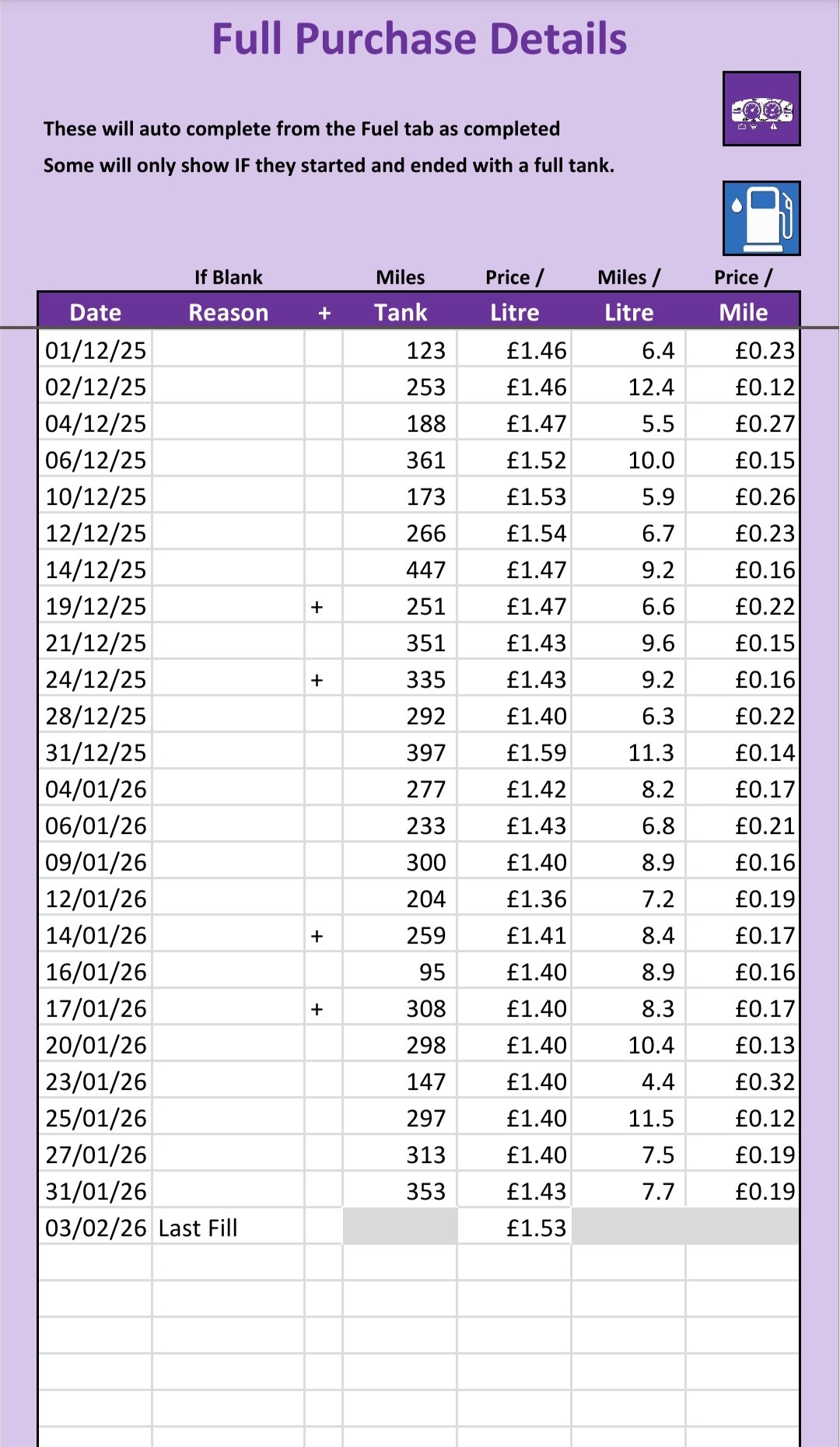
Full Purchase Details
This tab is directly linked to the Fuel Intake tab. row for row a match. So, as you add a new row on the Fuel Intake tab, then the results will appear here. Some of the figures may be greyed out until the next fuel intake is entered, and some may not show at all if the tank is not filled, but they will relate row for row against the entered fuel fills.
This shows the number of miles/KM achieved on this tank fill (assuming it was filled this time and the next), and the cost per unit of fuel. It will show the miles/KM per Litre/Gallon, as well as the price per Mile/KM when next filled.
The Miles/KM per Litre/Gallon is checked here, to see if it is better, worse, or the same as the current average. That translates to an appropriate arrow on the Fuel Intake tab, to show how your consumption was on each tank.
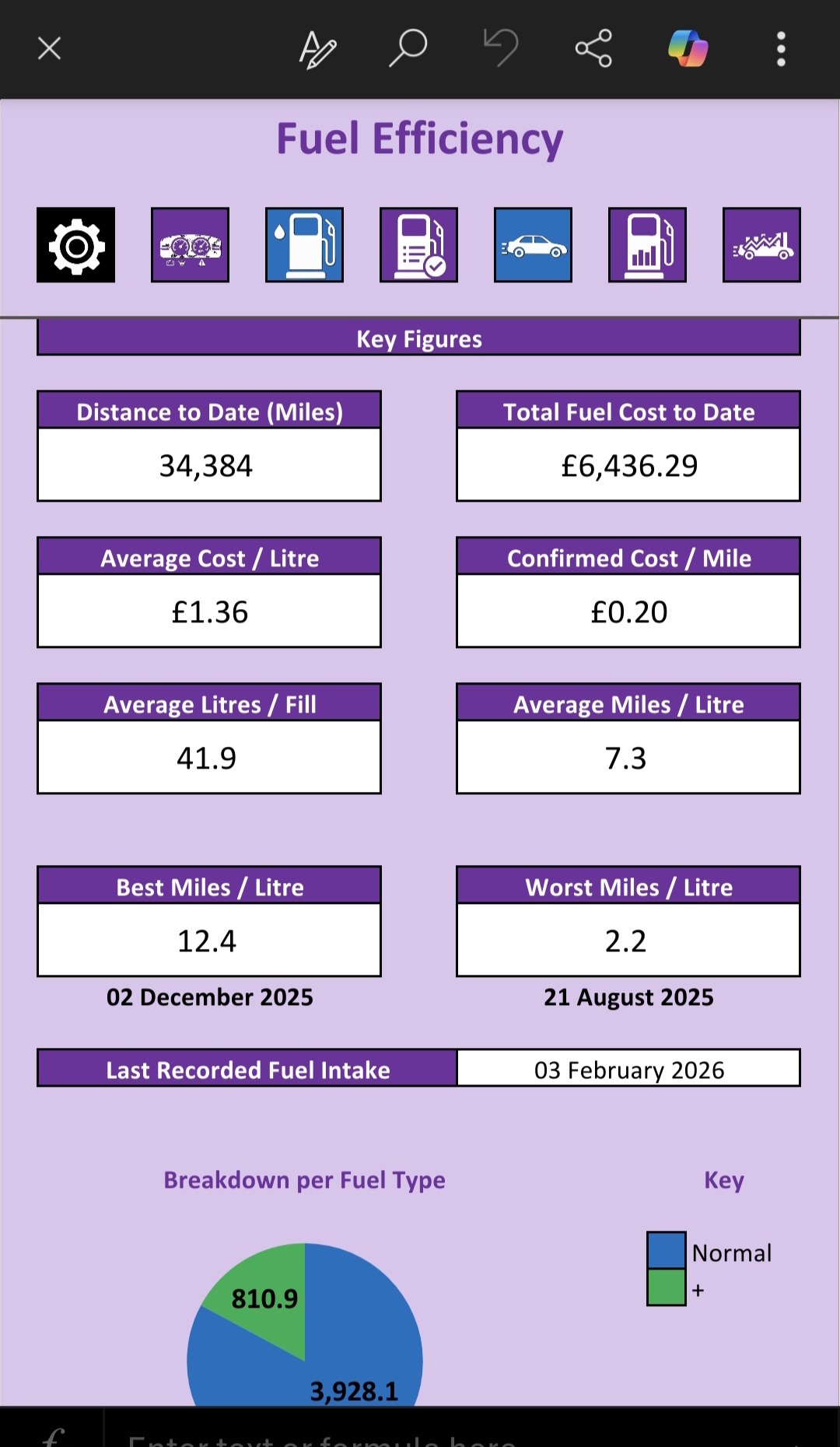
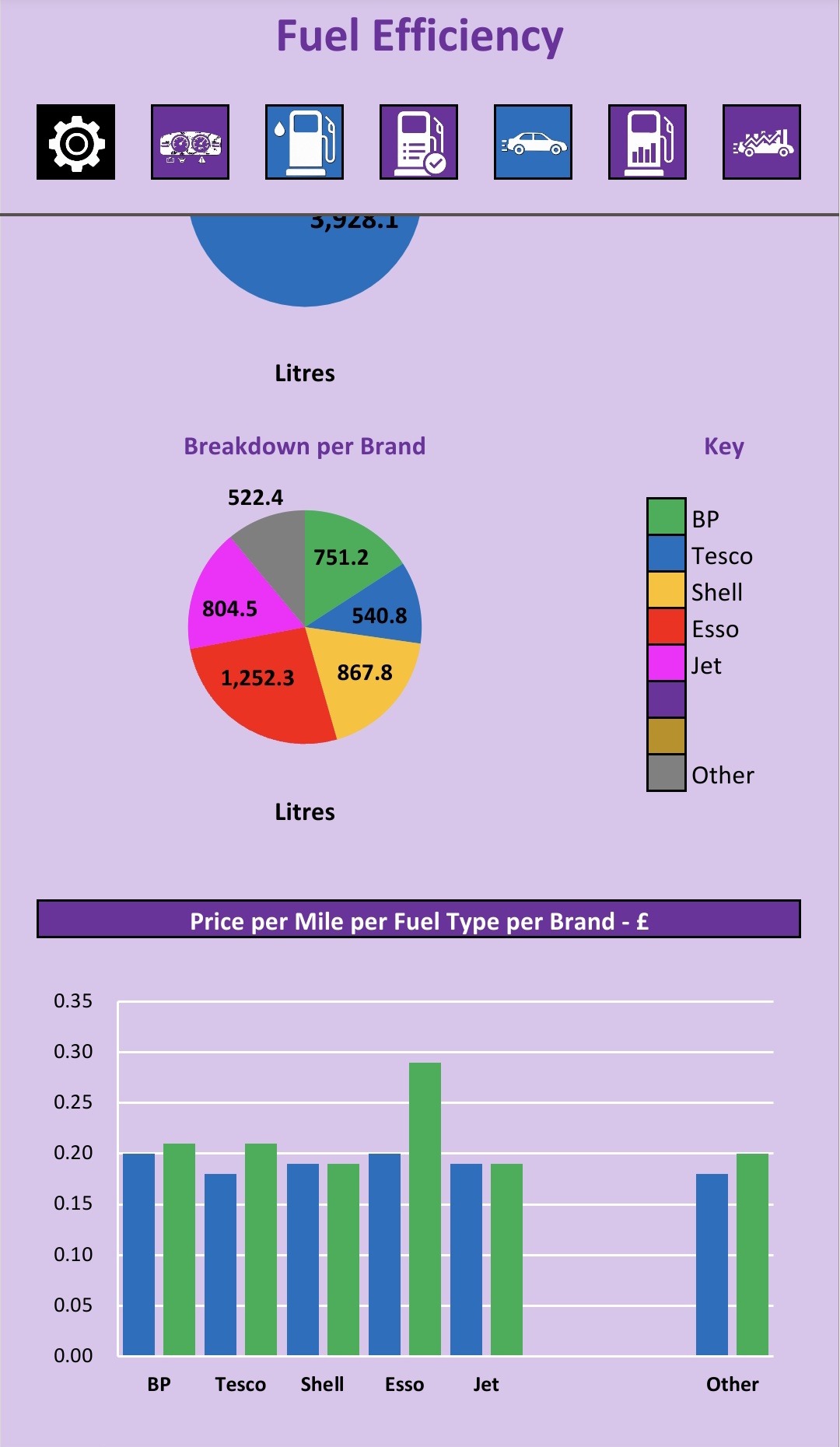
Fuel Efficiency
This shows the same key values as the Dashboard, so have a look on that explanation for those. It also has the best and worse Miles/KM per Litre/Gallon, so that you can see the range you have been within. These will show the respective dates when they occurred.
You can also see the breakdown of how much fuel you purchased, both as normal versus superior, as well as by brand. This is useful to see which fuel you have favoured.
Lastly it gives you the average price per Mile/KM per type per brand. So, you can see exactly which brand and type has been the most economical for you. These only include fill ups where it was full at the start and end, so they can be more accurately calculated. But please keep in mind that this requires an exact starting and ending capacity, which may not be an exact science.
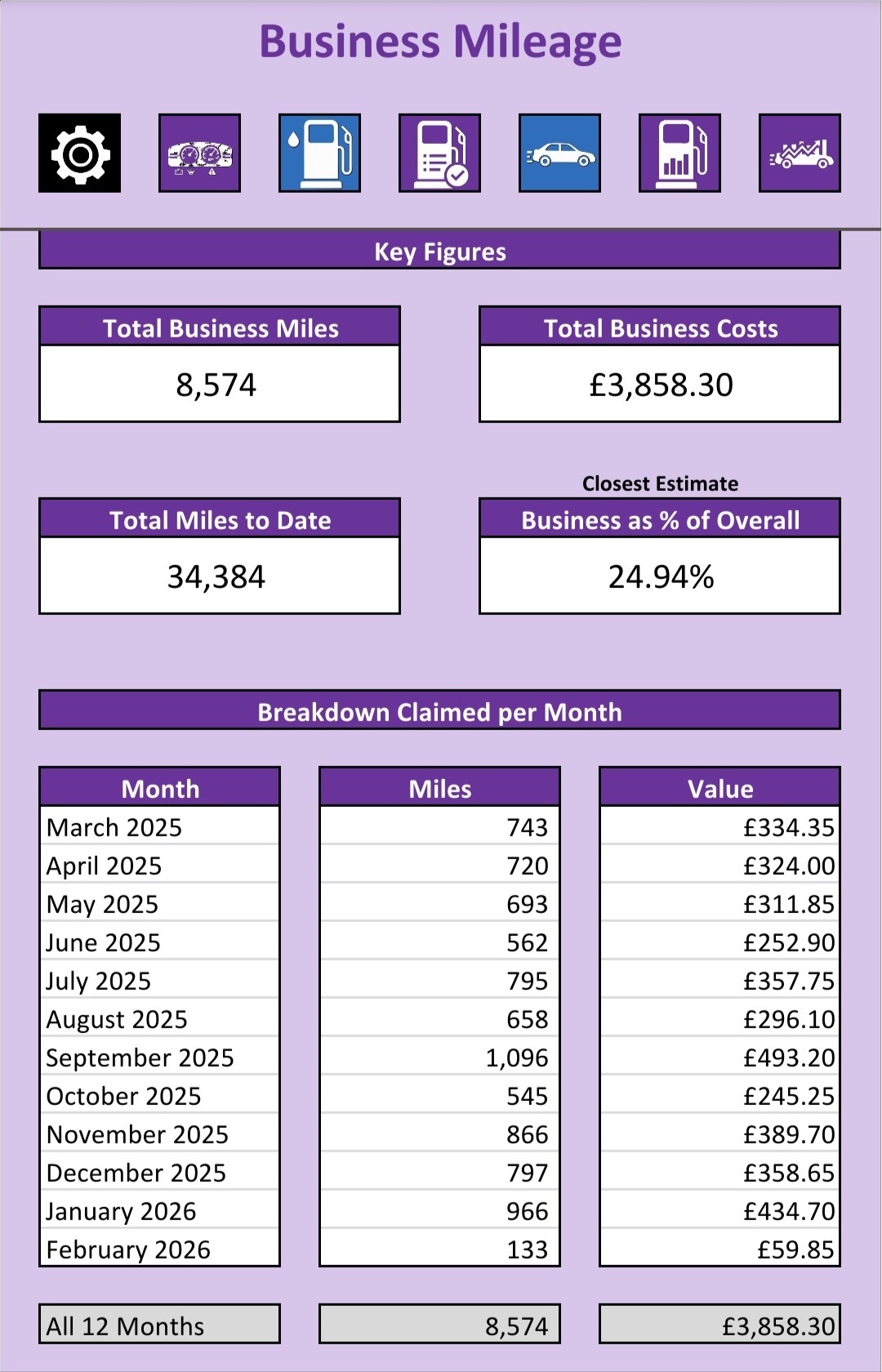
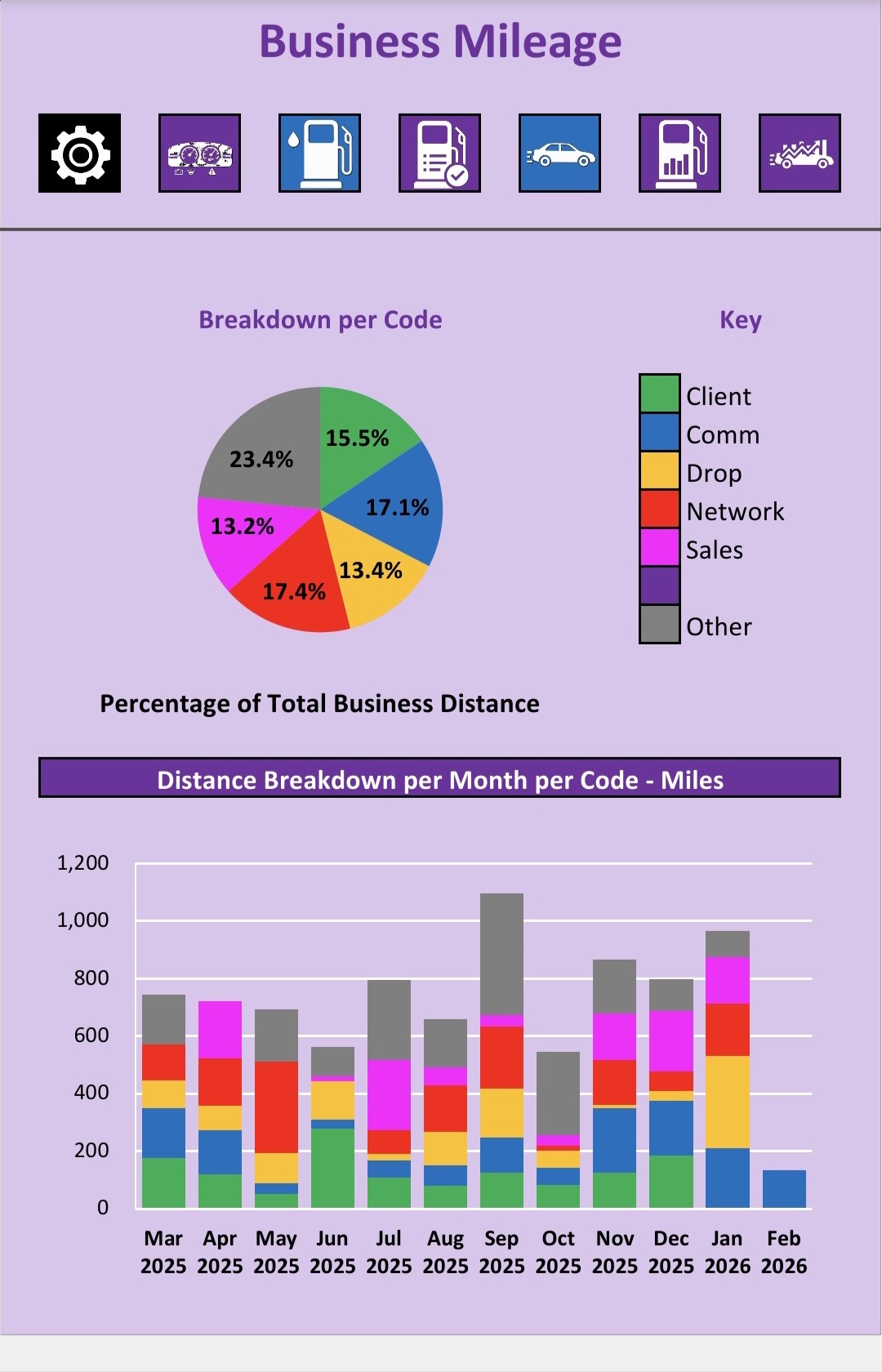
Business Mileage
This gives you some key figures as explained on the Dashboard explanation, as well as the percentage of overall miles used for business use. This should be most correct at the end of the year once the final closing odometer reading has been entered.
It also gives you a list of the 12 months, as well as the number of business miles travelled in each month, and the value you can claim based on the rates entered. It also gives the same breakdown by category, which is not pictured. Those values are for the full year to date.
It gives you the percentage breakdown of all distance travelled for business, broken down by the categories entered.
Lastly, it shows the miles per month for business use, but in the colours of the categories, so that you can see month to month how your business travel might vary according to the reason for the trip.
You’ve reached the end of the page, where would you like to go now?